How to Remove Serato DJ Duplicates (2026)
Scan your Serato library free with CrateSweep, compare every duplicate, and remove unwanted copies safely with automatic backup and one-click undo.
Free to scan and review on Mac. $19 one-time purchase to delete — no subscription.
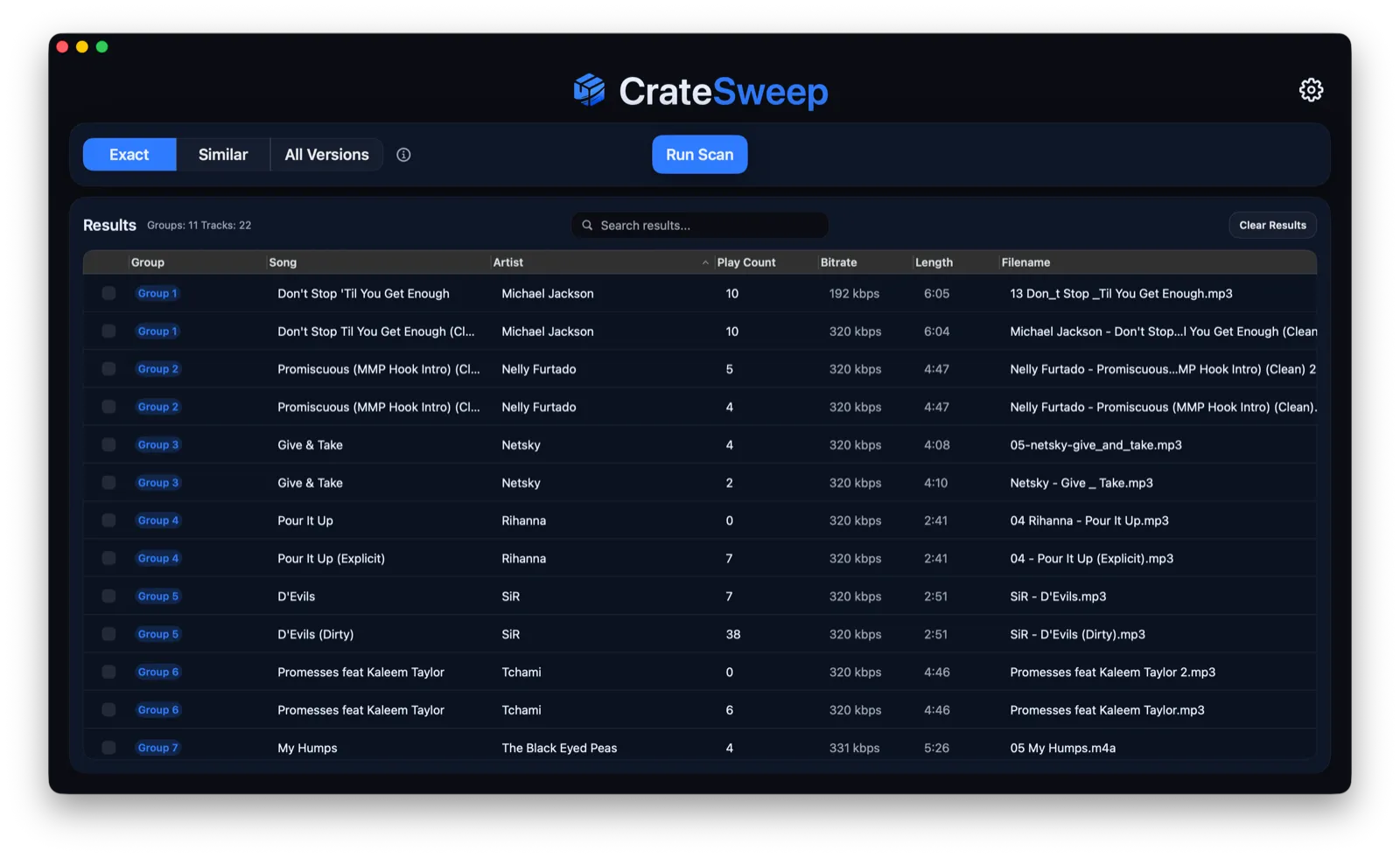
To remove Serato DJ duplicates without checking your library one track at a time, scan it with CrateSweep. The Mac app finds duplicate tracks in Serato, puts the copies side by side, and lets you choose what to remove. Scanning and reviewing are free.
Serato DJ Pro does not include a duplicate remover. You can sort by song name and clean the library manually, but that misses renamed files and gives you no undo. CrateSweep is the faster route, with a database backup before deletion and a one-click restore if you change your mind.
How CrateSweep removes Serato duplicates
CrateSweep’s Serato duplicate finder reads the library Serato already uses. You do not need to export playlists, rebuild crates, or move your music into a new app.
1. Scan your library
Download CrateSweep, open it, and choose a scan mode. The app finds and loads your Serato library automatically, including tracks on connected external drives.
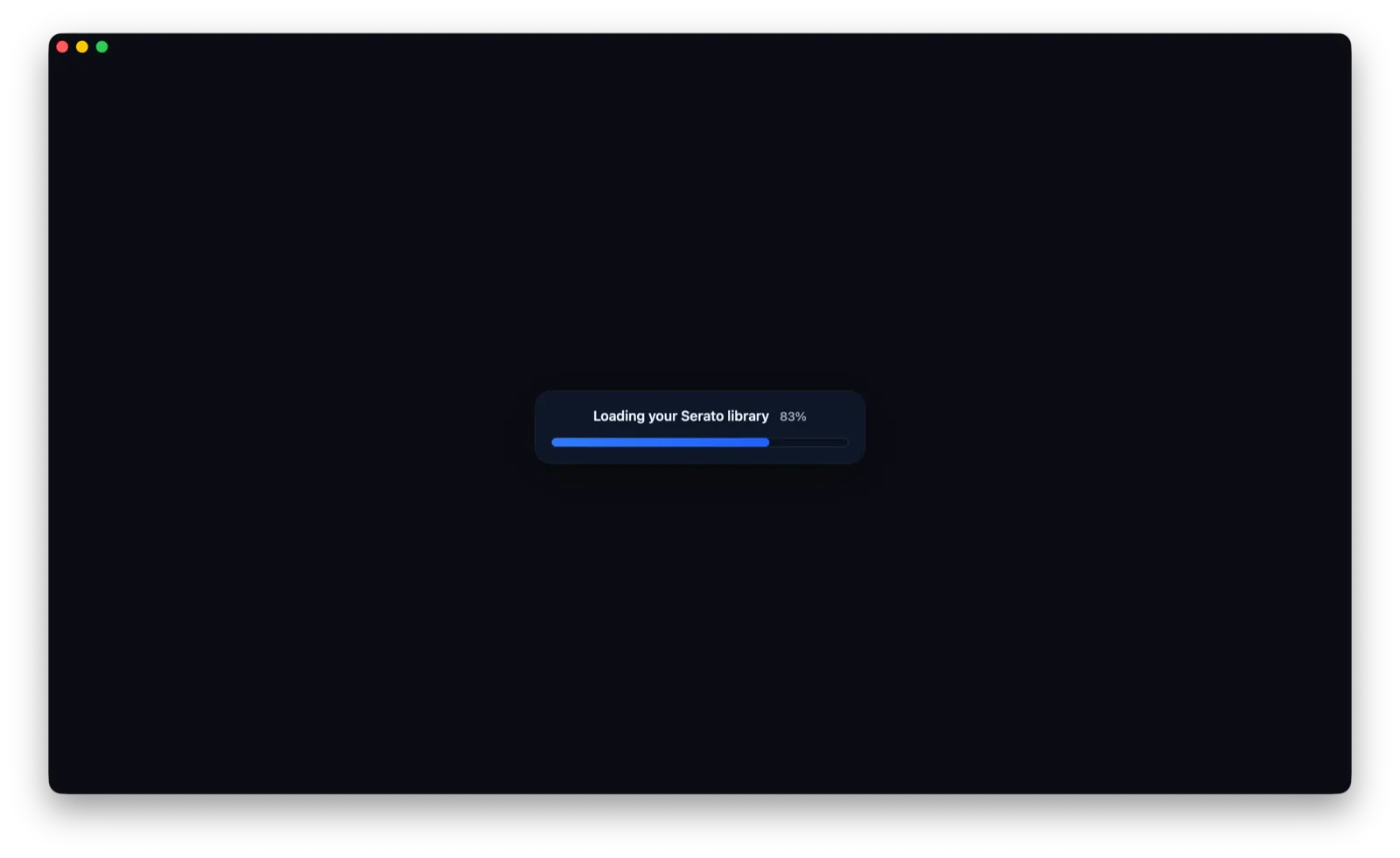
Choose how broadly you want to look:
- Exact finds true duplicates: the same track twice.
- Similar finds the same track in slightly different files, like a re-download or a renamed copy.
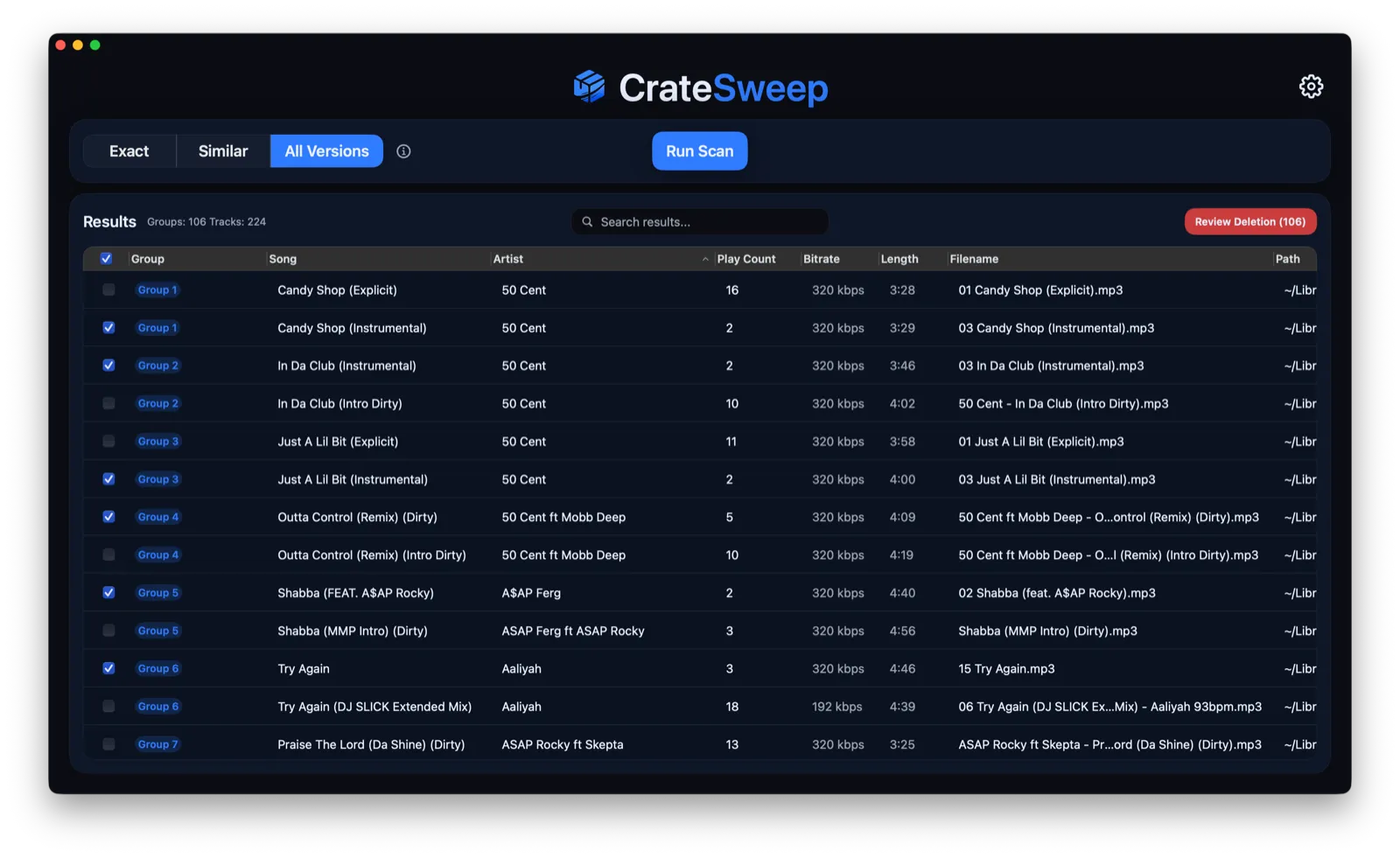
- All Versions groups every take of a song: clean, dirty, instrumental, remixes.
2. Compare the copies worth keeping
Every duplicate is grouped with its copies. Play count, bitrate, length, filename, and file path appear side by side, so you can keep the version you actually use rather than guessing from the title alone.
Smart Select can pick the likely unwanted copy across all the groups — for example, a 192 kbps copy instead of a 320 kbps one. Every choice stays visible and editable before anything is removed.
3. Review once, then delete safely
Nothing is deleted while you scan or select tracks. CrateSweep shows the full deletion list on a separate confirmation screen first.
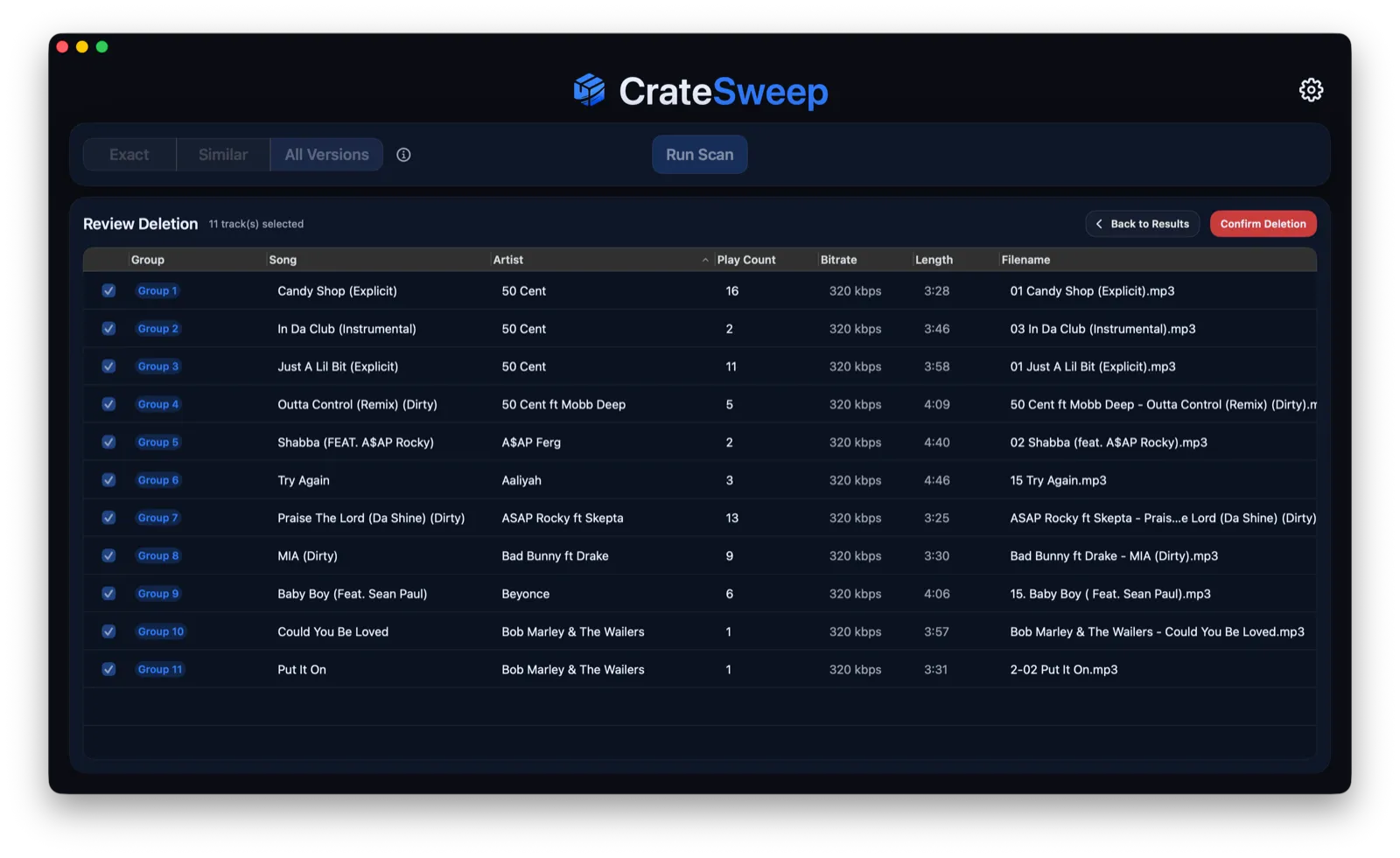
Before removing anything, CrateSweep creates a timestamped backup of your Serato database. It removes the selected entries from Serato and moves the audio files to the Trash, where they remain recoverable.
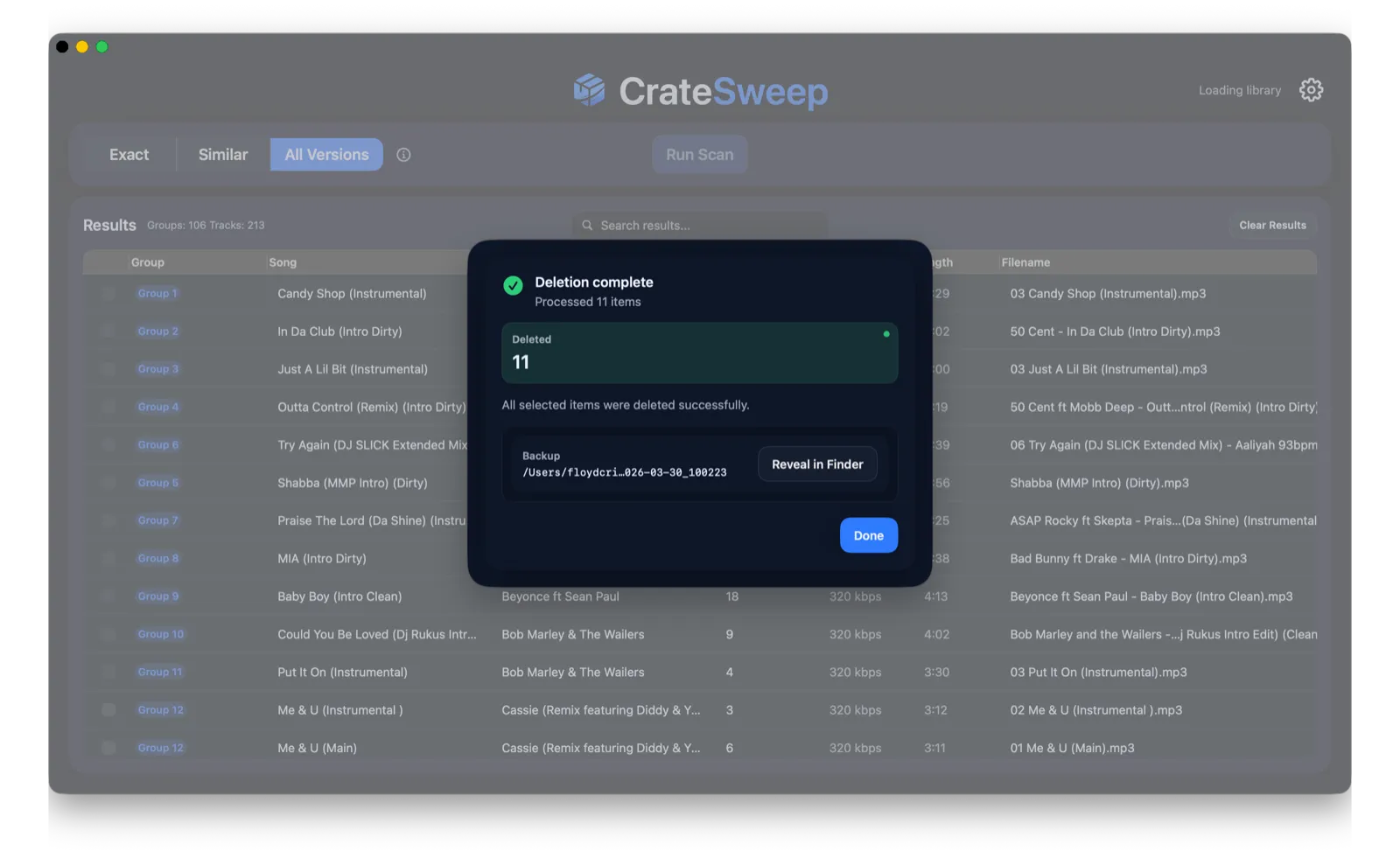
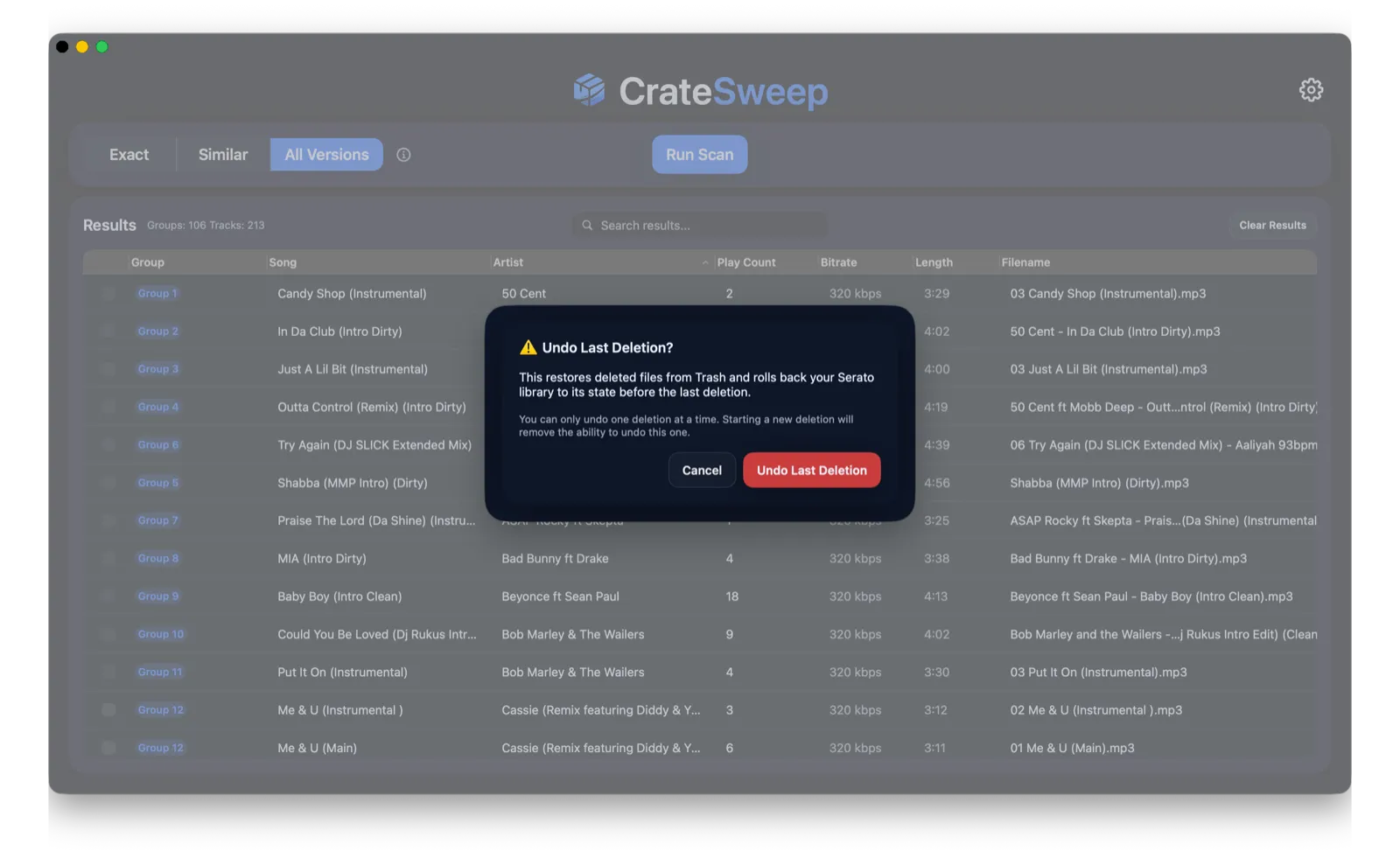
If you change your mind, Undo Last Deletion restores the files and rolls the Serato library back to its pre-cleanup state.
Scan your Serato library free. Deleting requires a one-time $19 license. There is no subscription.
CrateSweep vs removing duplicates manually
| Manually in Serato | CrateSweep | |
|---|---|---|
| Finds renamed duplicates | No, name sort only | Yes, via Similar & All Versions modes |
| Workflow | Check tracks one by one | Review grouped results |
| Removes the files from disk | Separate step in Finder | Yes, to the Trash |
| Safety net | Manual backup, no built-in undo | Automatic backup and one-click undo |
| Cost | Free | Free to scan, $19 to delete |
How to remove duplicates manually in Serato DJ Pro
If your library is small or you already know which few copies you want to remove, the manual method is workable.
Back up your Serato library first. Quit Serato and copy your entire _Serato_ folder somewhere safe. Serato has no undo for these library changes.
- Open the All view and sort by song name. Tracks with identical titles will line up beside each other.
- Show the bitrate, length, and filename columns. Use them to decide which copy to keep. A higher bitrate is usually preferable, while a file in
Downloadsmay be the stray copy. - Remove the unwanted entry with
Cmd+Delete. This removes it from the Serato library and its crates, but leaves the audio file on your drive. - Find and delete the unwanted audio file in Finder if you also want to reclaim the disk space. Check the path carefully: deleting the copy you kept will turn that Serato entry orange and mark it missing.
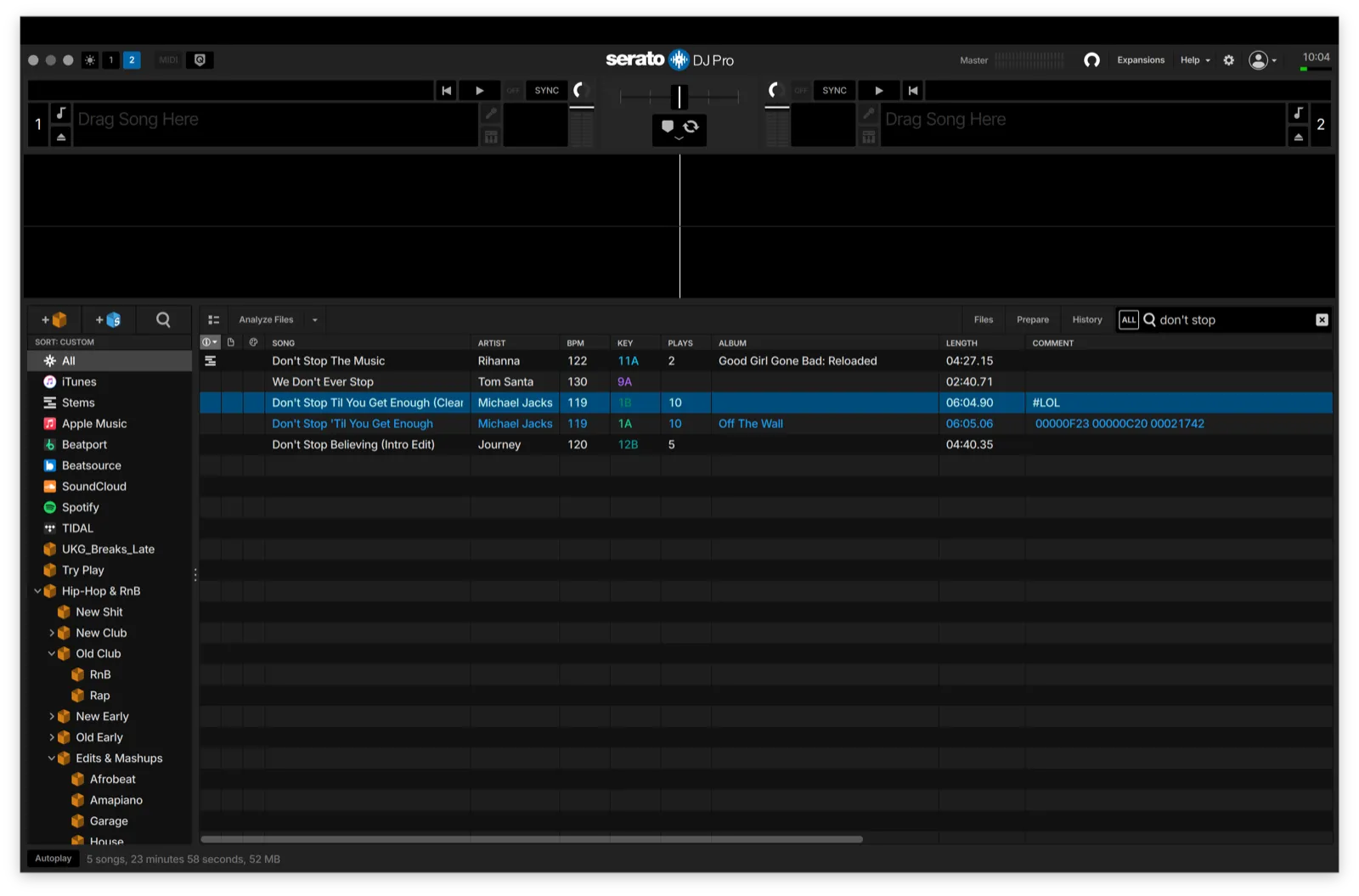
The limitation is the match itself. Sorting by name only catches identical titles. A renamed file such as Track (Clean) 2.mp3 may sit nowhere near Track.mp3, even when both contain the same music. Generic file finders can locate byte-for-byte copies, but they do not understand your Serato crates or library metadata. The dupeGuru vs CrateSweep comparison explains that difference in detail.
Why duplicates build up in Serato
Serato’s library is a database that points to audio files on disk: the _Serato_ folder in your Music folder, plus another on each external drive. If you import the same song from two folders, re-import a USB, or download a fresh copy from a record pool, Serato records separate tracks. It does not compare them and warn you that the music is already present.
After cleaning up, fix the import habits behind Serato duplicates that keep reappearing. Keep one main music folder, move files into it before importing, and avoid renaming or relocating tracks in Finder after Serato knows their path. For the wider process, follow the complete Serato library cleanup workflow.
Serato duplicate removal FAQ
Does Serato DJ Pro have a built-in duplicate remover?
No. Serato DJ Pro and Serato DJ Lite do not detect duplicate tracks. You can sort by name and remove obvious copies manually, or scan the Serato database with a dedicated tool such as CrateSweep.
Will removing a duplicate delete the music file?
Removing a track inside Serato leaves the audio file on your drive. You must delete the file separately in Finder to recover the space. CrateSweep removes the library entry and moves the selected file to the Trash after backing up the Serato database.
Can CrateSweep find duplicates with different filenames?
Yes. Similar and All Versions scans can group renamed copies and alternate files that a simple filename sort misses.
Is CrateSweep free?
Scanning and reviewing duplicate groups is free. Removing the selected tracks requires a one-time $19 license, with no subscription.
CrateSweep for Serato
Sweep your library in minutes
Find duplicate tracks, review every match, and keep your Serato crates clean before your next set.
Download Free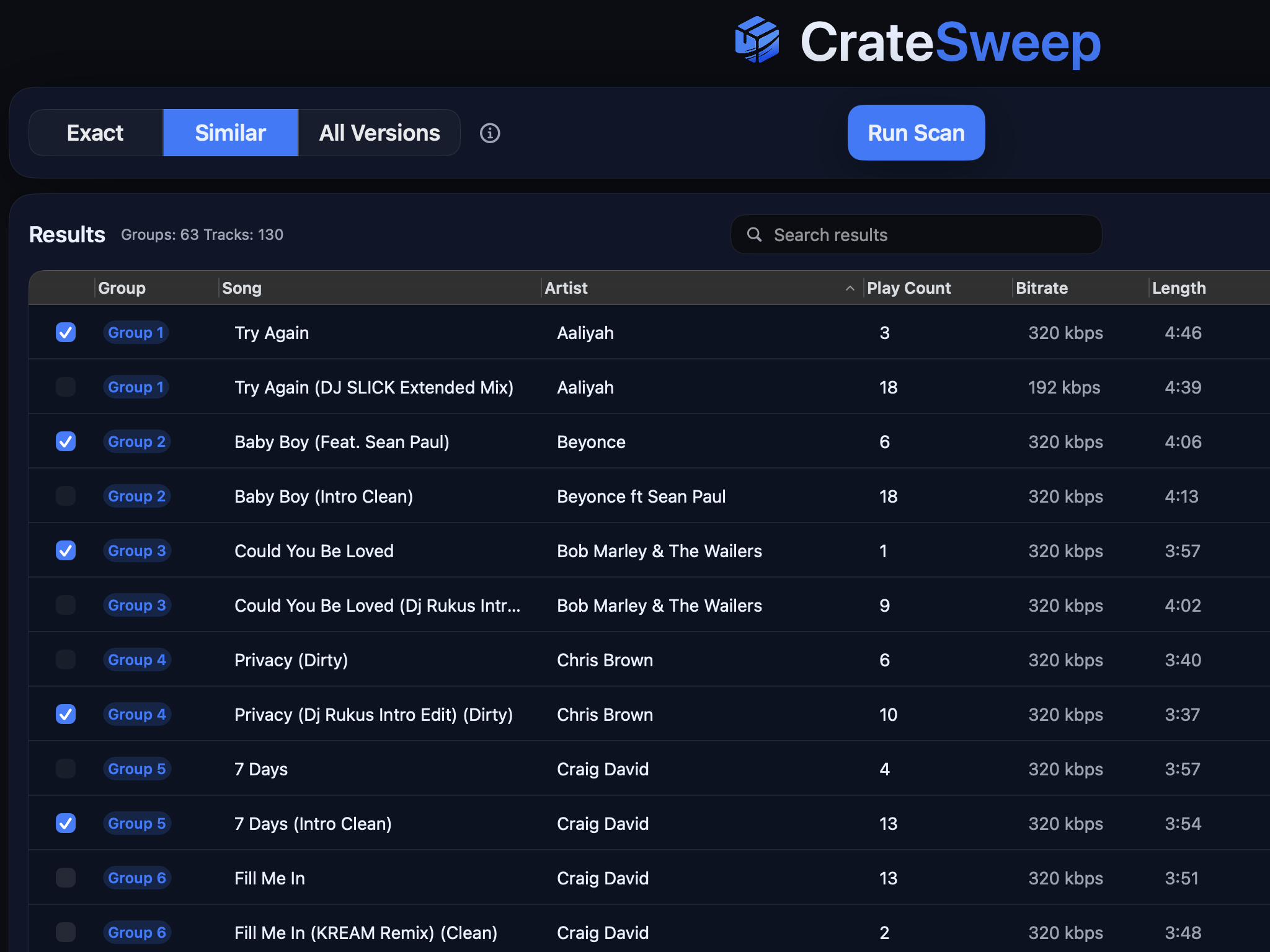
Related guides
Crate Hackers Review 2026: Is It Worth $30/Month?
What Crate Hackers actually does, who the curated crates help, where it falls short, and why crate-building works better on a clean Serato library.
dupeGuru vs CrateSweep for Serato Duplicates (2026)
dupeGuru is free but doesn't know Serato exists. What each tool catches, what deleting files does to your crates, and which is safer for DJs.
Lexicon vs CrateSweep for Cleaning a Serato Library
Lexicon and CrateSweep both find duplicate tracks, but they're built for different jobs. Pricing, workflow, and which to use for Serato cleanup.