Move Serato to a New Mac Without Losing Cues (2026)
Transfer your Serato library to a new Mac with crates, cue points, loops, and beatgrids intact — the exact folders to copy and the path traps to avoid.
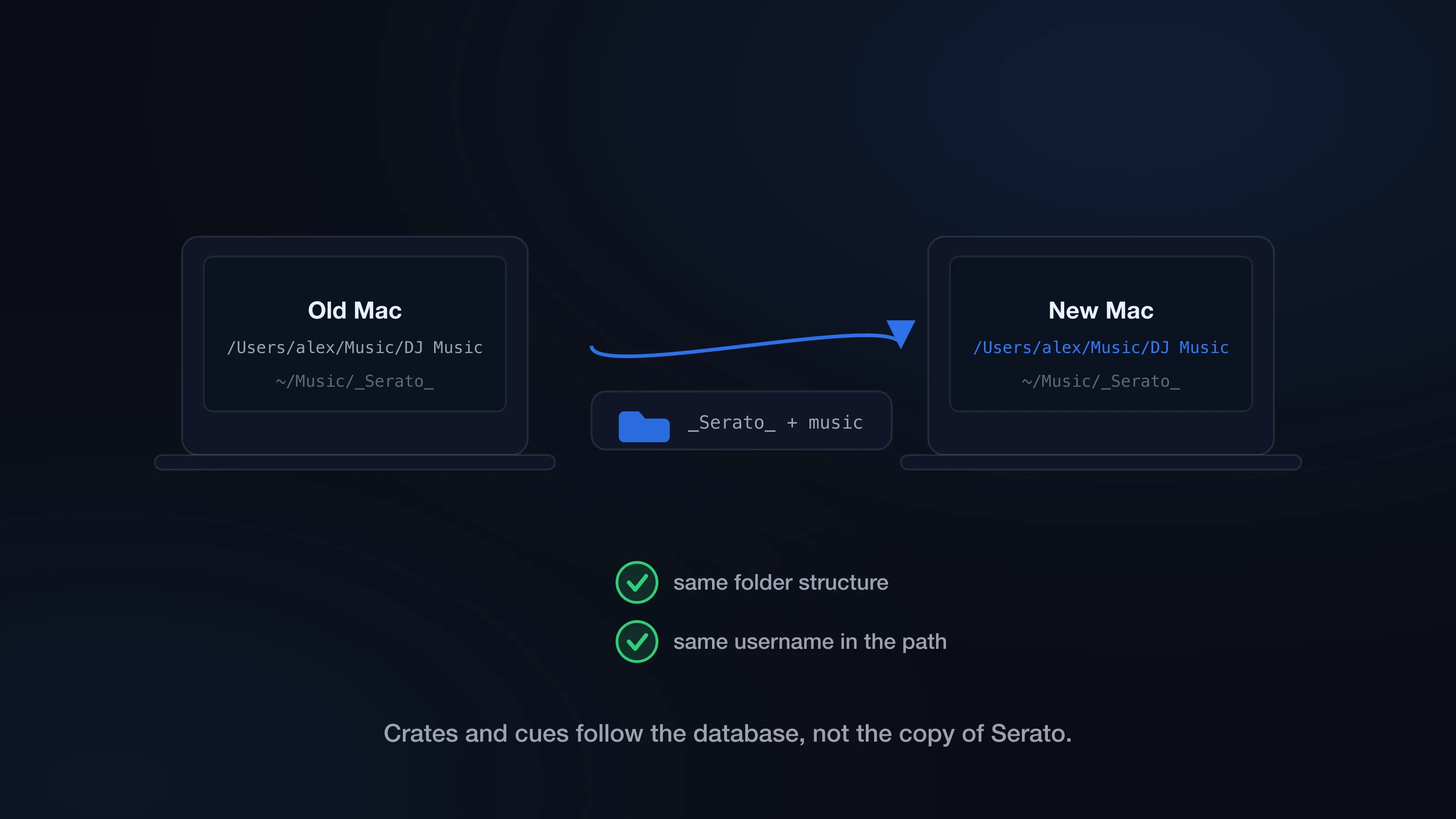
Your music files are only half the library. The other half is Serato’s database — crates, cue points, loops, beatgrids, play history, smart crates, and the file paths that tie it all together.
That’s why moving a Serato library to a new Mac goes wrong in two specific ways. Copy the audio but miss the database, and your working library is gone: every crate, every cue, years of prep. Copy the database but land the audio at a different path, and you open Serato to a wall of orange missing files. Both are avoidable if you copy the right things to the right places, in the right order.
What do you need to move a Serato library to a new computer?
Two things:
- Your audio files.
- The
_Serato_folder.
On the old Mac, the main _Serato_ folder lives here:
~/Music/_Serato_
It contains all the library data for that Mac: crates, cues, loops, beatgrids, history, smart crates. If your music lives on an external drive, the drive has its own _Serato_ folder at its root — and external-drive libraries are honestly the easiest kind to move.
How to transfer a Serato library to a new Mac
Start on the old Mac, and quit Serato before copying anything — it writes to its database while open.
- Quit Serato on the old Mac.
- Back up the library before changing anything.
- Copy your music folder to the new Mac.
- Keep the same path structure if at all possible.
- Copy the
_Serato_folder into the new Mac’s Music folder. - Launch Serato on the new Mac.
- Verify crates, cues, loops, beatgrids, and history before wiping anything from the old Mac.
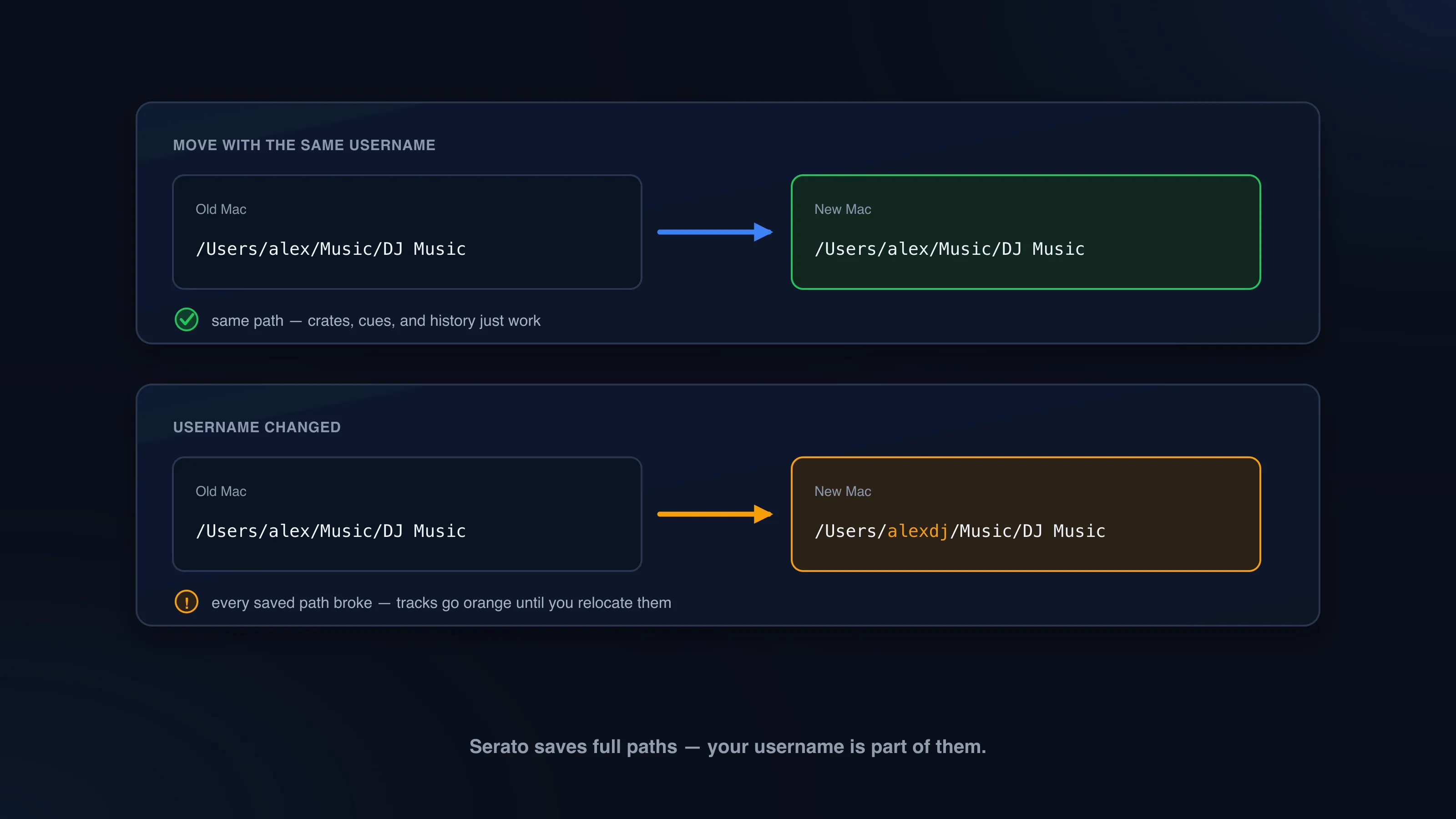
The path detail is the one that bites people. If your music lived at:
/Users/alex/Music/DJ Music
put it at exactly that path on the new Mac — including the username. The ~ shortcut hides it, but Serato’s saved paths spell out /Users/<name>/... under the hood. Old Mac alex, new Mac alexdj? Every path just changed, and Serato will need help finding the files. Recoverable, but avoidable.
Copy music to the same path if possible
Serato stores locations, not songs. A track at:
/Users/alex/Music/DJ Music/House/Track.mp3
is a different path from:
/Users/alex/Music/Serato Tracks/House/Track.mp3
even when the audio is byte-for-byte identical.
So resist the urge to use the move as your big reorganization moment. If everything was under ~/Music/DJ Music, put it under ~/Music/DJ Music again. Rename and restructure later, deliberately, when you’re not also juggling a migration — or be ready to relocate a lot of files afterward.
Copy the _Serato_ folder to the new Mac
With the audio in place, copy _Serato_ from the old Mac into the new Mac’s Music folder:
~/Music/_Serato_
If the new Mac already has a _Serato_ folder because you opened Serato once to try it, quit Serato and move that fresh folder aside before dropping in the real one.
Then launch Serato and check the things that actually matter on gig night:
- Do your crates appear?
- Do tracks load and play?
- Are cue points and loops where you left them?
- Do beatgrids look right?
- Is your history intact?
- Anything orange?
Open the crates you actually gig with, not one test track. Five minutes of checking now beats discovering a broken library from the booth.
What if the username or folder path changed?
Then some or all of your tracks will show orange. Don’t panic — orange after a move almost never means the audio is gone. It means Serato is looking at the old path.
Use Serato’s Relocate Lost Files (in the Files panel): drag your main music folder onto it and let Serato reconnect the entries. Start with the smallest folder that covers the missing tracks. The full walkthrough is here: how to fix missing orange files in Serato.
After relocating, test again before doing anything else to the library. Load tracks, check crates, confirm Serato reconnected to the right versions.
Moving Serato with an external drive
If your whole library — music plus the drive’s _Serato_ folder — lives on an external drive, the move is mostly just moving the drive. Quit Serato on the old Mac, eject properly, plug into the new Mac, open Serato.
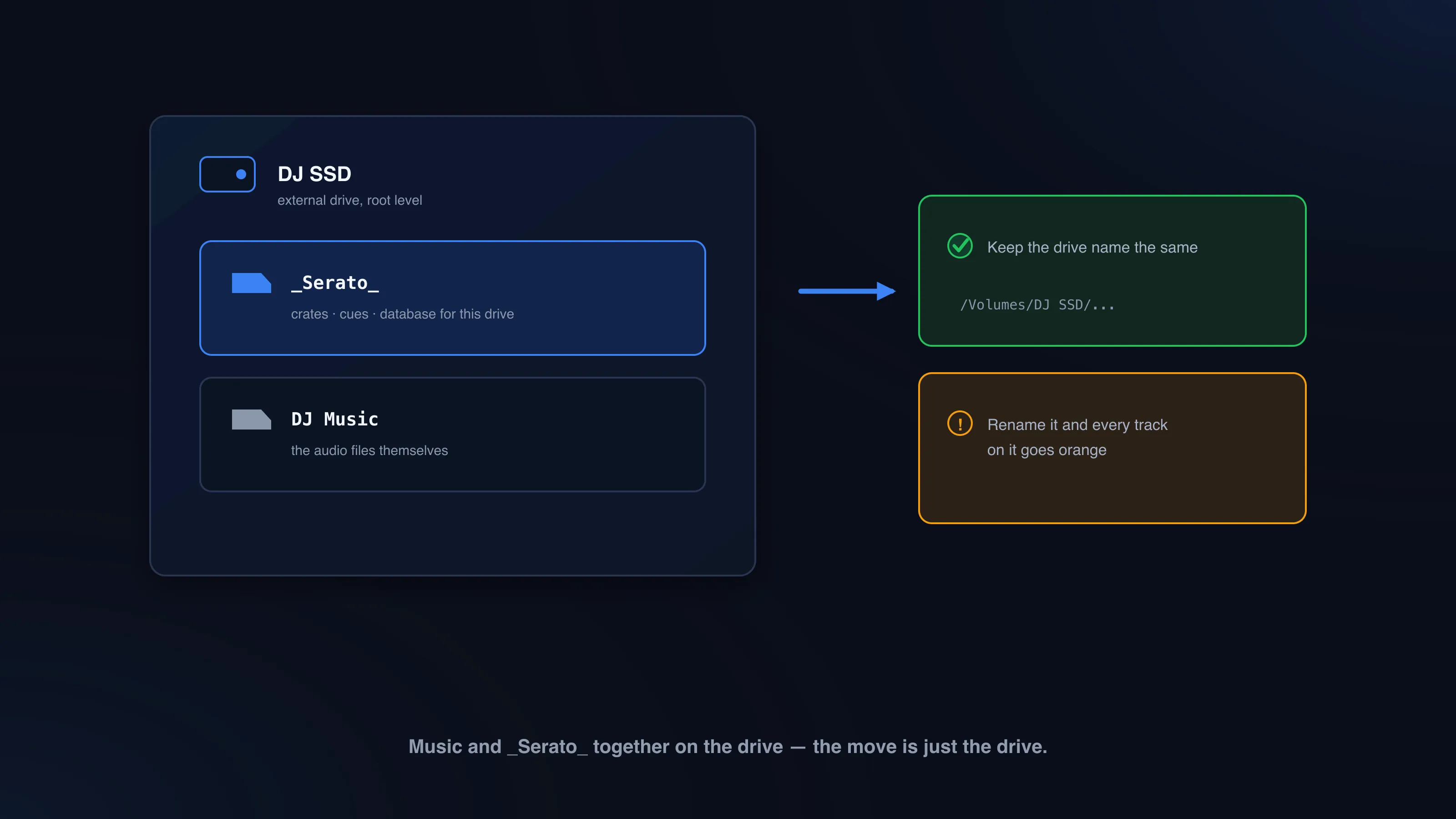
Two rules: don’t rename the drive (paths run through the drive name), and test before the gig. Plug in, open Serato, load a few real crate tracks, make sure they play.
Does Migration Assistant move Serato correctly?
Usually, yes — when the username stays the same, Migration Assistant preserves paths and everything lands where Serato expects it. But “usually” isn’t a verification. Open Serato on the new Mac and check crates, cues, and history before you wipe, sell, or hand down the old machine. If the username changed during migration, expect to relocate files.
Clean duplicates before moving — don’t ship the mess
Here’s a question worth asking before you copy anything: how much of that library do you actually want on the new Mac?
If you’ve been DJing on the old machine for years, some real percentage of your music folder is duplicates — the same track downloaded from two pools, re-imported from old USBs, (1).mp3 strays from Downloads. Copy it all across and you’re spending transfer time and new-SSD space on files you already own, plus importing the same cluttered search results you had before. A migration is the one moment when cleaning up first pays twice.
CrateSweep won’t do the migration — it’s not a transfer tool. What it does is shrink what you have to move: scan your Serato library for free, see every duplicate grouped with play counts and bitrates, and delete the losers before you copy. It takes an automatic database backup before any deletion, so the pre-move cleanup doesn’t add risk to the move. The removal steps are in the duplicate cleanup guide, and the full cleanup workflow puts everything in order.
So the sequence: back up, clean the duplicates, verify the old library still works, then move less. And don’t rush the final check — the migration is done when your crates, cues, loops, beatgrids, history, and audio all work on the new Mac, not when the copy finishes.
CrateSweep for Serato
Sweep your library in minutes
Find duplicate tracks, review every match, and keep your Serato crates clean before your next set.
Download Free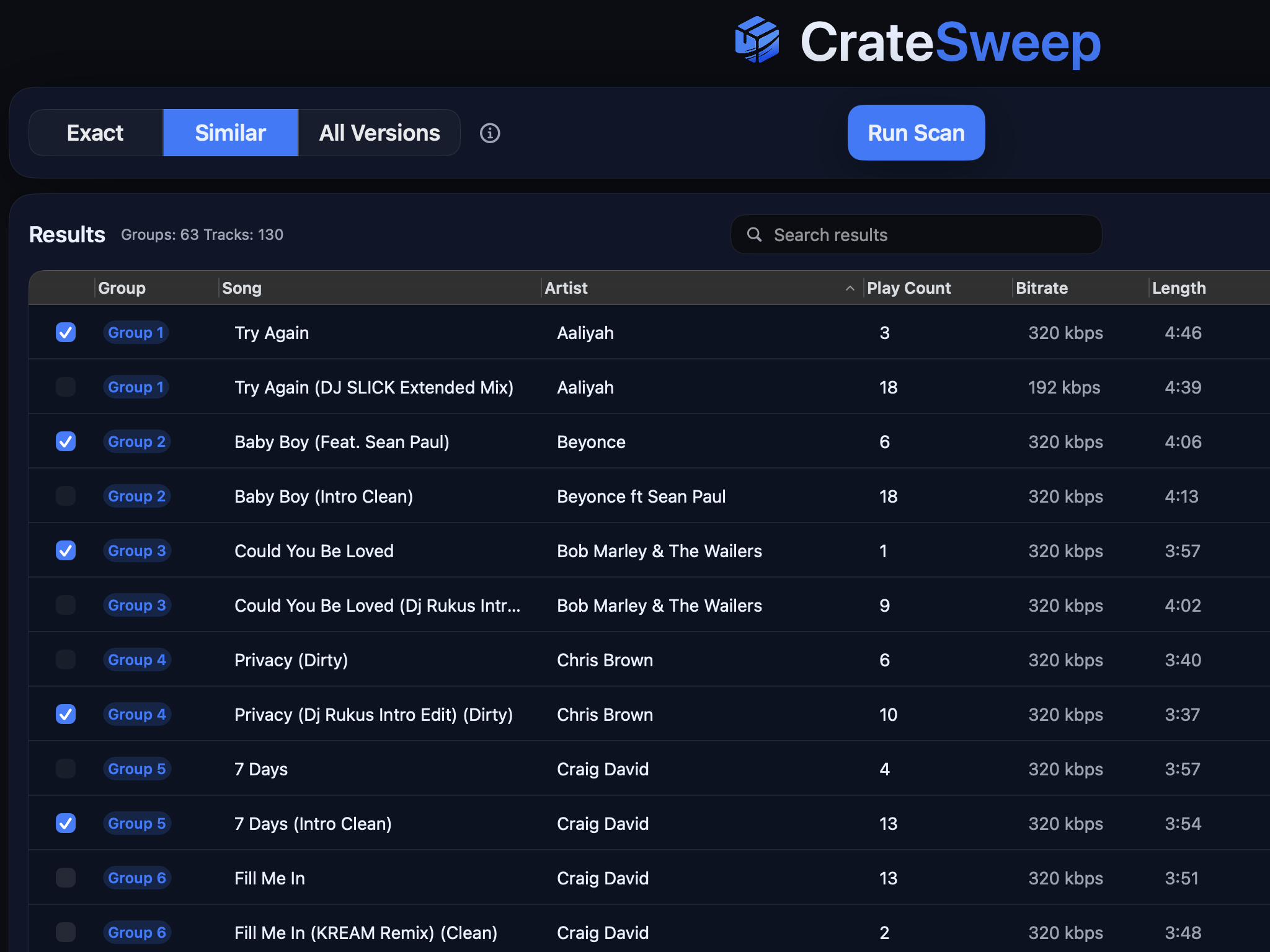
Related guides
Crate Hackers Review 2026: Is It Worth $30/Month?
What Crate Hackers actually does, who the curated crates help, where it falls short, and why crate-building works better on a clean Serato library.
dupeGuru vs CrateSweep for Serato Duplicates (2026)
dupeGuru is free but doesn't know Serato exists. What each tool catches, what deleting files does to your crates, and which is safer for DJs.
Lexicon vs CrateSweep for Cleaning a Serato Library
Lexicon and CrateSweep both find duplicate tracks, but they're built for different jobs. Pricing, workflow, and which to use for Serato cleanup.