The _Serato_ Folder Explained: Database, Crates, Cues
What's inside the _Serato_ folder, where it lives on Mac and external drives, what database V2 does, and why file paths cause orange tracks and duplicates.
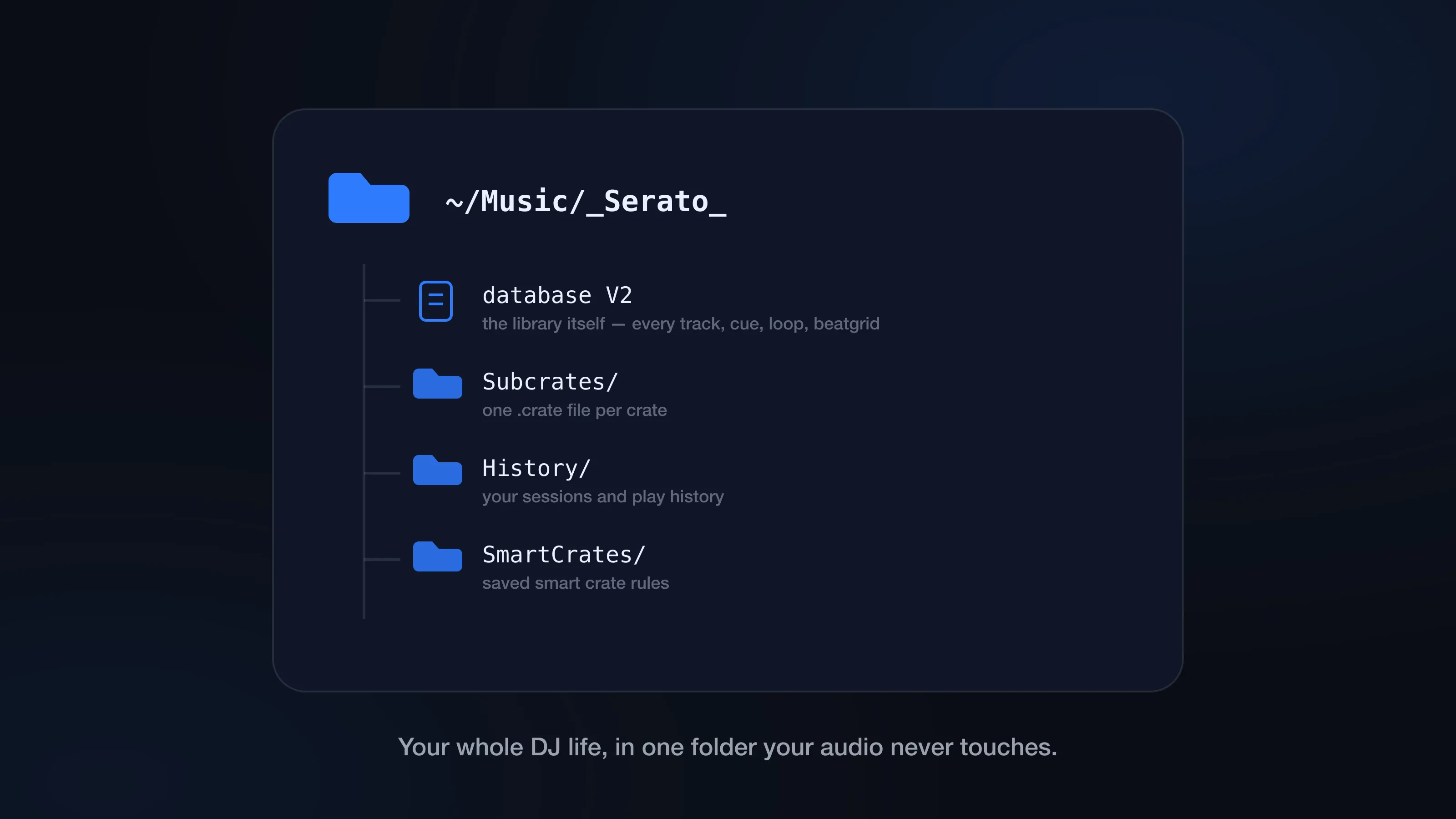
The _Serato_ folder is the half of your DJ library you never see in the decks. It’s where Serato keeps the library database, your crates, history, smart crates, and all the per-track DJ metadata you’ve built up over years of prep.
What it doesn’t contain is music. There’s not a single MP3 in there. The _Serato_ folder is the data Serato uses to know what you have, where it lives on disk, and how you’ve organized it — which is exactly why it matters so much when you back up, move to a new Mac, clean duplicates, or chase down orange files.
Where the _Serato_ folder lives
On your Mac’s boot drive, the main one is here:
~/Music/_Serato_
That’s the library data for everything Serato manages from your Mac. But it might not be the only one: if you keep music on an external drive, Serato creates a second _Serato_ folder at the root of that drive:
/Volumes/Your Drive/_Serato_
The drive-level folder holds the library data for tracks on that drive. This is why every backup guide (including ours) says to copy every _Serato_ folder, not just the one in Music — miss the drive’s folder and you’ve backed up half a library.
What’s inside the _Serato_ folder
The file that matters most is the main database:
database V2
No file extension, no pretty format — it’s Serato’s master index of library entries, file paths, and DJ metadata. You never need to open it, and you never should.
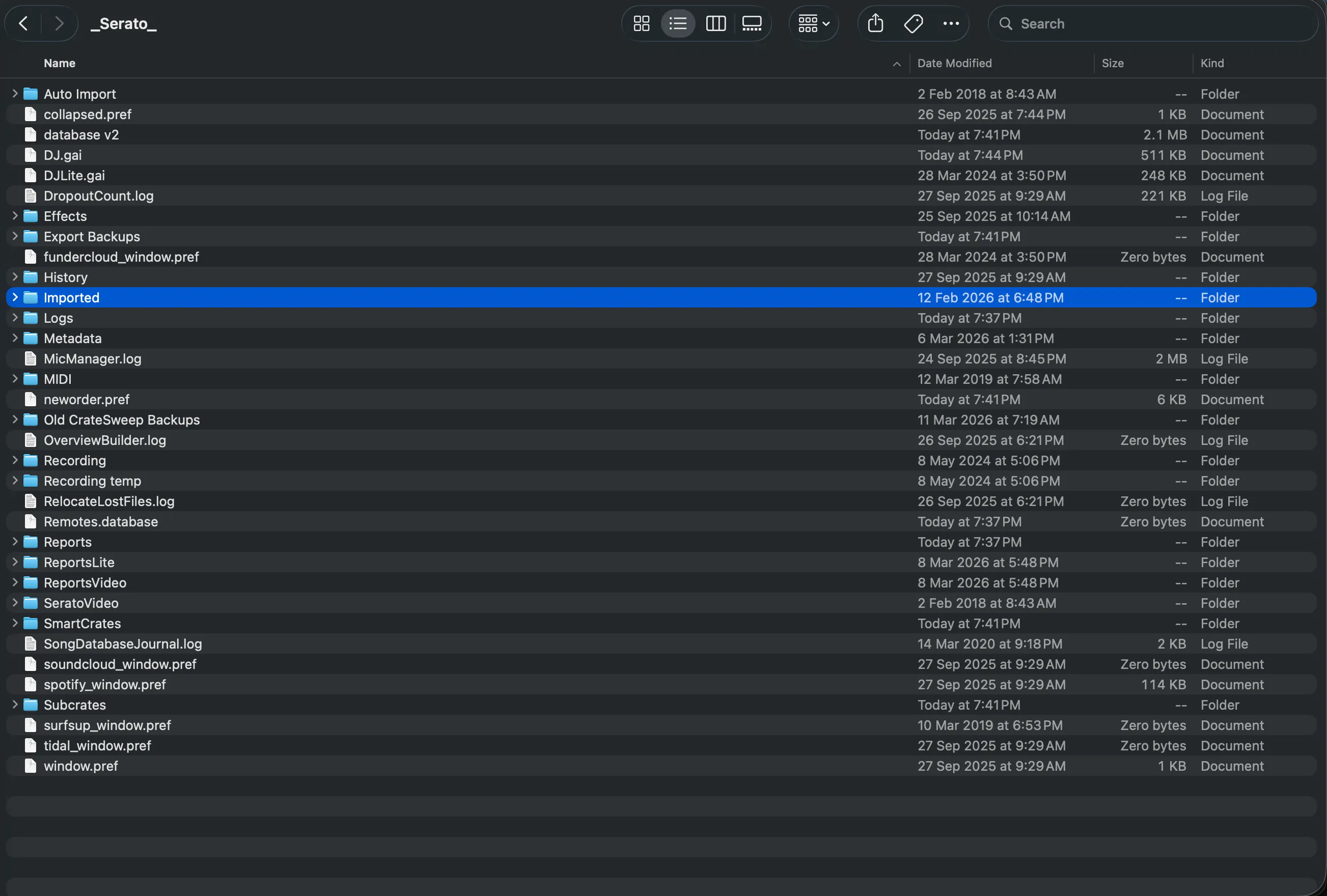
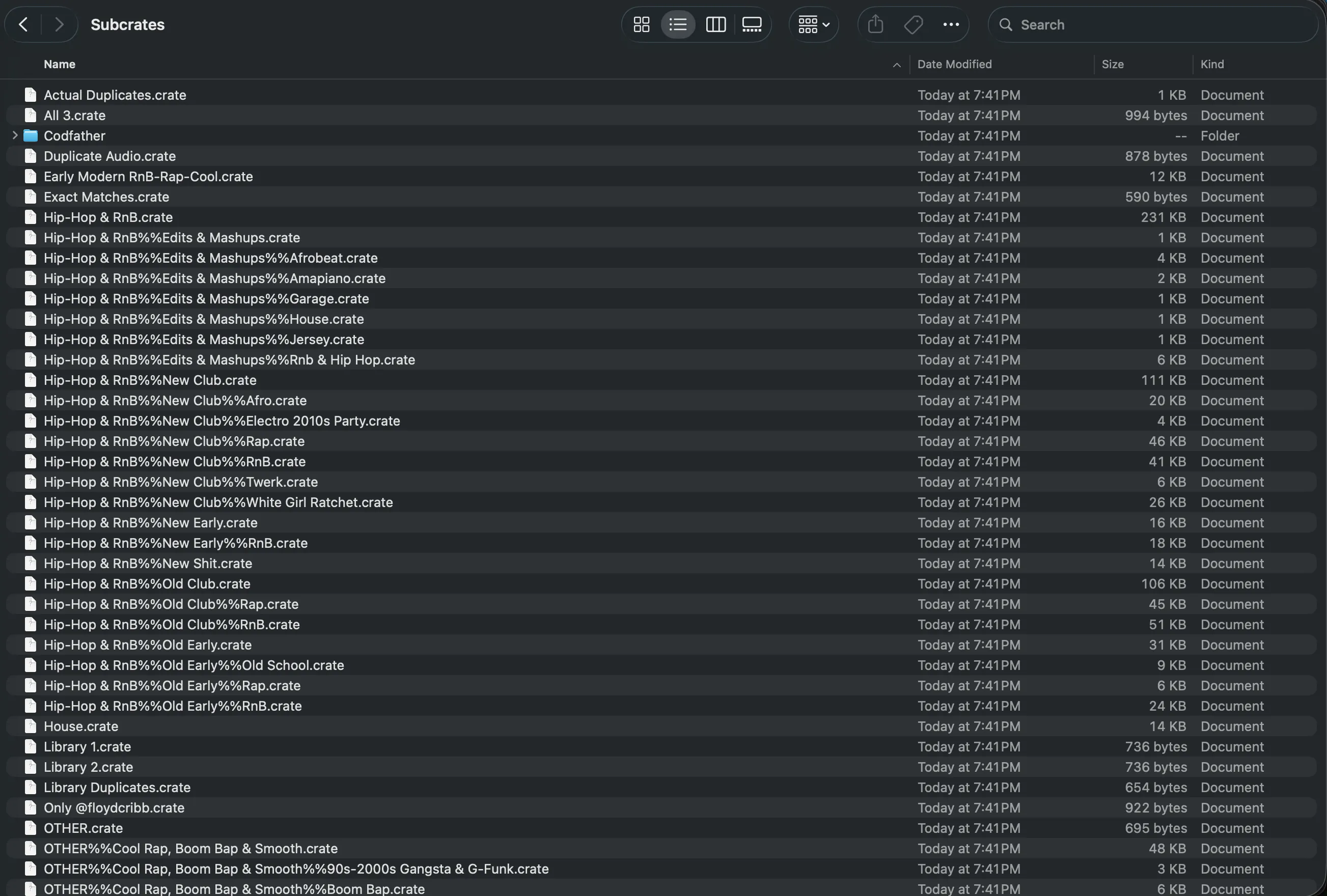
Next to it you’ll find a Subcrates folder, where each .crate file is one of your crates. A crate file is pure organization — a list of references, not audio. Deleting one loses the crate, not the tracks (though if that crate took years to curate, that’s loss enough).
The rest is history and session data, smart crate definitions, analysis data, and the storage for cues, loops, and beatgrids. You don’t need to know the byte layout of any of it — just what it is, so you treat the folder with appropriate respect.
Rules of thumb
Don’t edit anything in _Serato_ by hand. Even files that look readable have a structure Serato depends on. A hand edit can quietly corrupt crates, paths, history, or metadata.
Quit Serato before copying the folder. Serato writes to the database while it’s open. Backups and migrations want a database that’s sitting still.
Deleting _Serato_ resets the library, not your music. Your MP3s, WAVs, AIFFs, and FLACs live elsewhere and survive. But the organization — crates, cues, history — is gone with the folder. Back up first, always.
Treat .crate files as part of the library. They’re “just” organization, but a working DJ’s crate tree is years of accumulated judgment. Don’t handle them casually.
Why Serato’s design causes classic library problems
Everything in that database hangs off one design decision: Serato tracks files by path.
Add a track from:
/Users/you/Downloads/Track.mp3
then later add it again from:
/Users/you/Music/DJ Music/Track.mp3
and Serato records two library entries, because those are two different paths. It never compares the audio, so nothing ever notices they’re the same song. That’s the root of most duplicate problems — re-imported folders, Downloads strays, laptop-to-USB round trips all create new paths for music you already had. (Why duplicate tracks keep reappearing in Serato digs into the habits behind it.)
The same design explains orange missing files, just in reverse: the entry stays put while the file moves. Rename a folder in Finder, and the database still points at the old path — entry intact, audio unfindable. The fix lives in Serato’s relocation tools, never in editing the database yourself.
Where CrateSweep fits
So you’ve got a database full of path-based entries, some of which point at the same music — and a firm rule against opening that database by hand. How do you actually clean it?
That’s the gap CrateSweep fills. It reads database V2 directly — the same records Serato uses — and compares tracks by what they are, not just what path they were added from. That’s how it catches the duplicates a filename sort misses, like the same track saved under two slightly different names.
You review the groups it finds, and when you delete, it removes the library entry and moves the audio file to the Trash together, after backing up the Serato database automatically. All the database surgery you’re not supposed to do by hand, done safely. Scanning and review are free; deletion is a one-time $19 unlock.
The takeaway: _Serato_ is the working memory of your library. Back it up, never hand-edit it, and remember it points at your music rather than containing it — because that pointing is where both duplicates and orange files come from.
CrateSweep for Serato
Sweep your library in minutes
Find duplicate tracks, review every match, and keep your Serato crates clean before your next set.
Download Free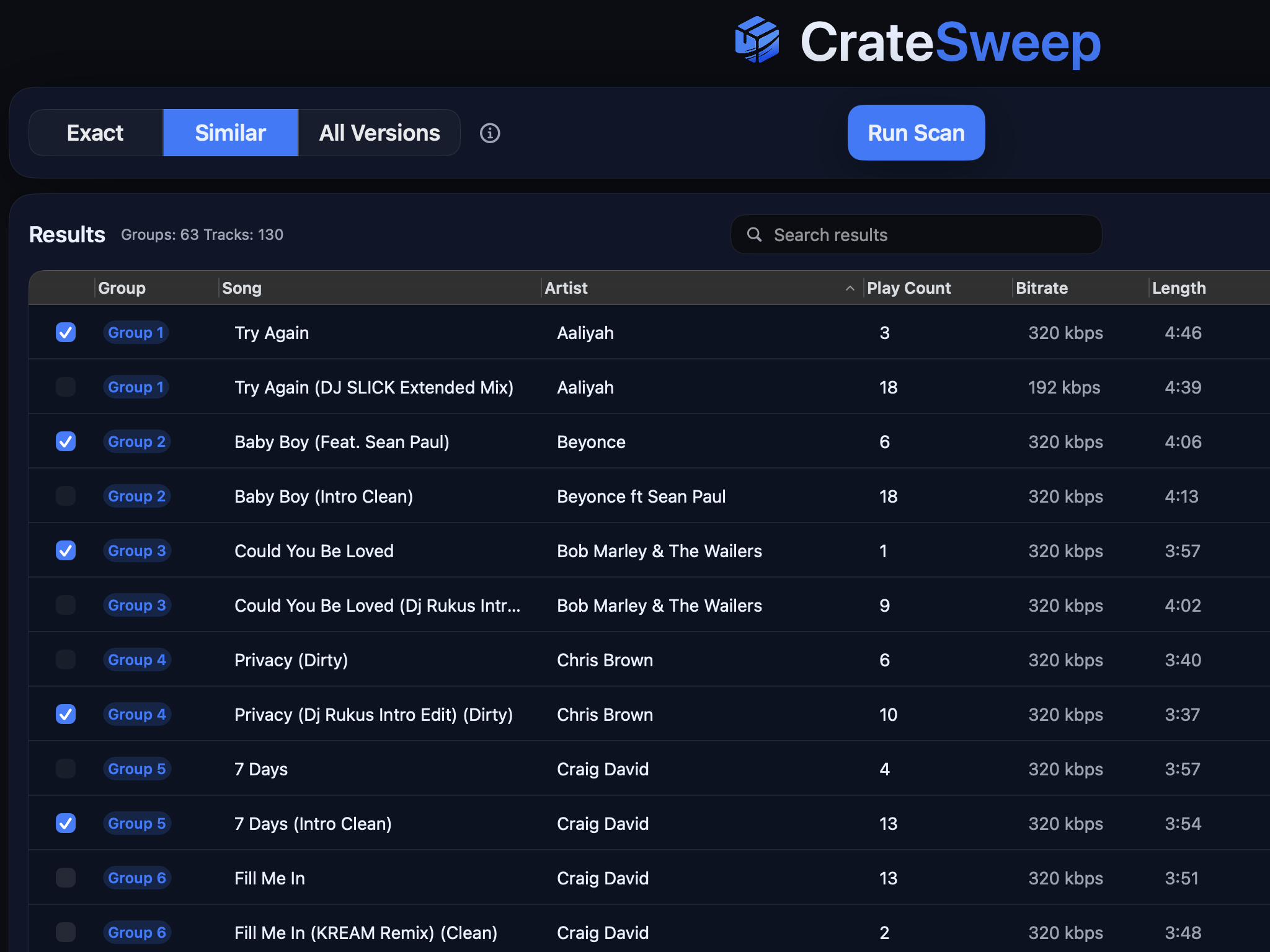
Related guides
Crate Hackers Review 2026: Is It Worth $30/Month?
What Crate Hackers actually does, who the curated crates help, where it falls short, and why crate-building works better on a clean Serato library.
dupeGuru vs CrateSweep for Serato Duplicates (2026)
dupeGuru is free but doesn't know Serato exists. What each tool catches, what deleting files does to your crates, and which is safer for DJs.
Lexicon vs CrateSweep for Cleaning a Serato Library
Lexicon and CrateSweep both find duplicate tracks, but they're built for different jobs. Pricing, workflow, and which to use for Serato cleanup.