Serato Library Cleanup: 6-Step DJ Workflow (2026)
Clean your Serato library the right way: back up, fix orange missing files, remove duplicates, prune dead tracks, and organize crates — in the right order.
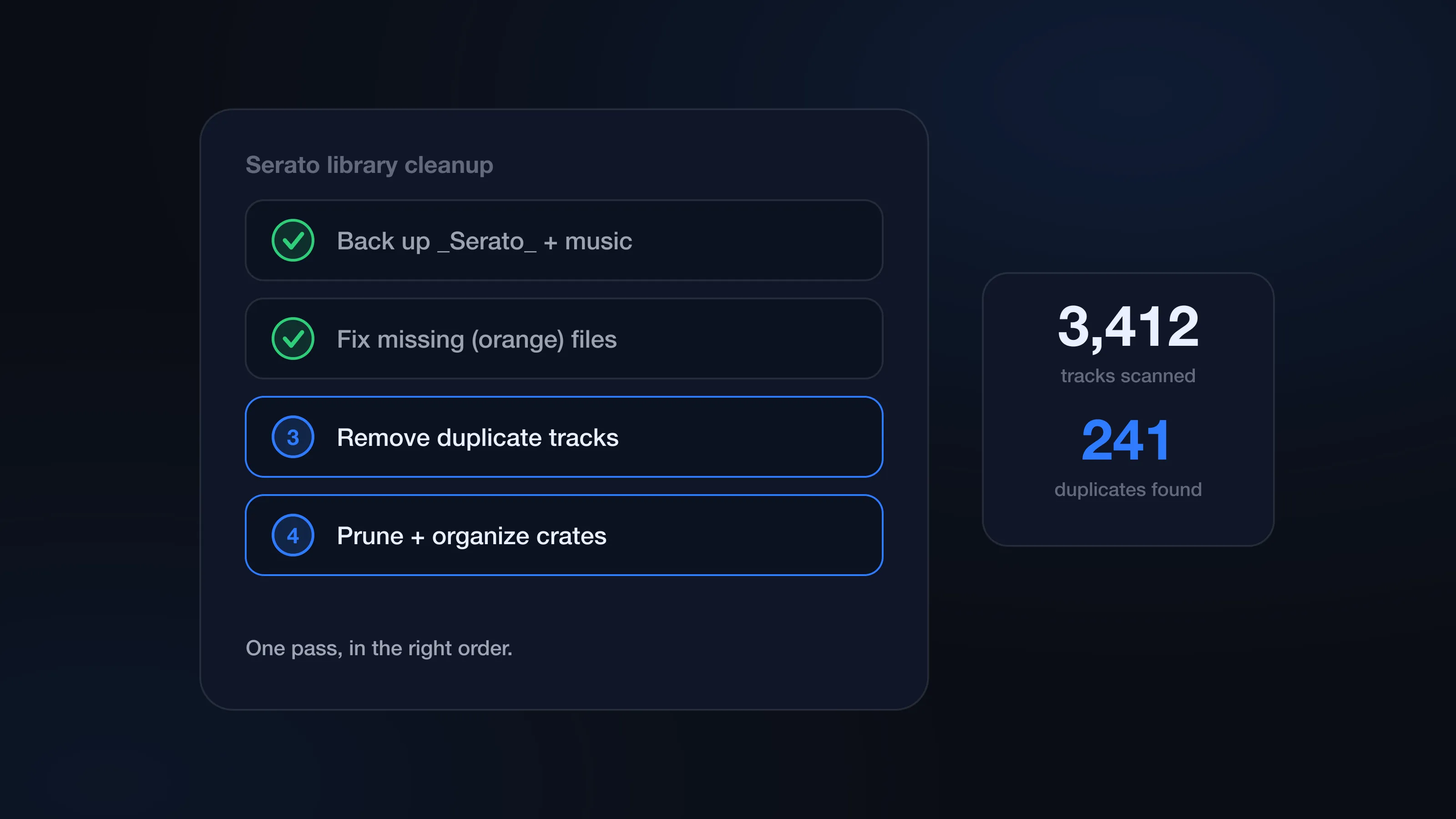
A good Serato library cleanup isn’t one giant delete session — it’s a sequence. Back up first, make sure the files Serato points at are real, then remove duplicates, trim what you never play, and tighten the crates.
The order matters more than any single step. Start deleting duplicates while half the library is orange and you’re making keep-or-delete decisions from broken information. This guide is the full workflow in order, linking to the deeper guides where the details live.
1. Back up first
Quit Serato and copy the _Serato_ folder before touching anything:
~/Music/_Serato_
If you keep music on external drives, each drive has its own _Serato_ folder at its root — copy those too.
That folder is the map of your library: crates, cue points, loops, beatgrids, play history, smart crates, and the database pointing at your audio. The MP3s, WAVs, AIFFs, and FLACs are separate — back up both, and date the copy (_Serato_ backup 2026-07-21) so you know exactly what state it holds.
Full walkthrough: how to back up your Serato library. What the folder actually contains: the _Serato_ folder explained. CrateSweep also takes its own automatic database backup before deletion runs — that’s a later safety net, not a substitute for this step.
2. Fix missing (orange) files
Orange tracks mean Serato has the entry but the saved path no longer resolves — the file was moved, renamed, deleted, or is on a drive that isn’t plugged in.
Fix these before duplicate work, for one practical reason: duplicate cleanup means comparing real files. If one copy is missing and one loads, that changes which copy you keep. And if Serato is pointing at stale paths, deleting files by hand can turn a cleanup into a bigger mess.
Start with the basics — connect your drives, check drive names, confirm the music folders still exist. Then run Serato’s Relocate Lost Files against the smallest folder that covers the missing tracks, and spot-check a few reconnected tracks afterward.
Step-by-step: how to fix missing orange files in Serato.
3. Remove duplicate tracks
For most DJs this is the core of the cleanup — and the step where all the time goes.
Duplicates come from normal work: record-pool downloads, old USB imports, files dragged out of Downloads, laptop-to-drive syncs, inconsistently named versions. Some repeats are useful (you need the clean and the dirty). Plenty are junk.
The manual method: open the full library view, sort by song name so identical titles line up, show the bitrate, length, and location columns, then compare each pair and pick a winner. Keep the better-quality copy with the clearer home — a 320 kbps file in your music folder over a 192 kbps stray in Downloads. Remove the loser with Cmd+Delete, which removes the entry and crate references but not the file; reclaiming the disk space means finding and deleting the file in Finder too.
That two-app split is where manual cleanup gets both slow and risky. Every pair is a compare, a delete in Serato, and a hunt in Finder — and if you delete the wrong file, the copy you kept goes orange. A name sort also never catches Track (Clean) 2.mp3 sitting three folders away from Track.mp3. On a few obvious pairs, fine. On a few thousand tracks, it’s an afternoon of squinting with no undo. The full manual guide: how to remove Serato DJ duplicates.
This is the step CrateSweep exists for. It reads the Serato library directly and does the whole compare in one pass — three scan modes, depending on how deep you want to go:
- Exact for true duplicates.
- Similar for renamed copies and re-downloads.
- All Versions to group clean, dirty, instrumental, intro, and remix versions together.
Results come back grouped, with the play count, bitrate, length, and filename comparison already laid out. Smart Select pre-ticks the likely loser in each group and you override whatever you disagree with. When you confirm, it removes the entry and moves the file to the Trash together — no two-app split, no orphaned entries — after backing up the Serato database automatically. Scanning and review are free; deletion is a one-time $19 license.
If duplicates keep coming back after cleanup, the problem is upstream — read why duplicate tracks keep reappearing before doing another pass. And if you’re weighing a broader library hub against a focused cleanup tool, see Lexicon vs CrateSweep.
4. Prune dead weight
With duplicates gone, look at the tracks you simply never play.
This step shouldn’t be automated — no tool knows that the track with zero plays is the one edit you keep for a specific client. Use play counts, history, and crate memory as signals, and start with the safe kills: ancient imports, low-bitrate files, one-off requests, genres you no longer book.
For the maybes, make a temporary review crate. Park questionable tracks there, ignore it through a few weeks of real gigs, then come back. If you never reached for any of them, that’s your answer.
5. Organize crates
Now that every entry points at a real file and the copies are gone, crate work stops being archaeology.
Keep the structure simple enough to use under pressure: broad crates for working categories, subcrates for recurring contexts, smart crates for anything rule-based. A mobile DJ might run Dinner, Dance, Clean, Cocktail, Latin, Requests at the top level, with subcrates by venue type or era.
The trap is over-filing. If every new import needs twenty decisions, the system stops getting maintained by August. Save smart crates for rules that don’t need taste — clean edits, high bitrate, recently added, BPM ranges — and keep human crates for feel.
6. Keep it clean
The last step is making the cleanup stick, and it’s all import workflow.
Pick one canonical music folder and route every new track through it: download, move it in, tag or rename, then import into Serato once. No building crates straight out of Downloads. Turn off the Apple Music/iTunes display in Serato if you don’t use it. And once Serato knows about a file, don’t move or rename it in Finder — Serato stores paths, so a Finder move turns one track into an orange entry plus a fresh duplicate. (Why duplicates keep reappearing covers all of these habits in depth.)
One more timing tip: always run this workflow before a Mac migration, so you move less clutter to the new machine. And do cleanup before a gig week, never the night of.
A clean Serato library isn’t a perfect one. It’s one you trust — search results make sense, crates reflect how you actually play, and every track you load actually plays.
CrateSweep for Serato
Sweep your library in minutes
Find duplicate tracks, review every match, and keep your Serato crates clean before your next set.
Download Free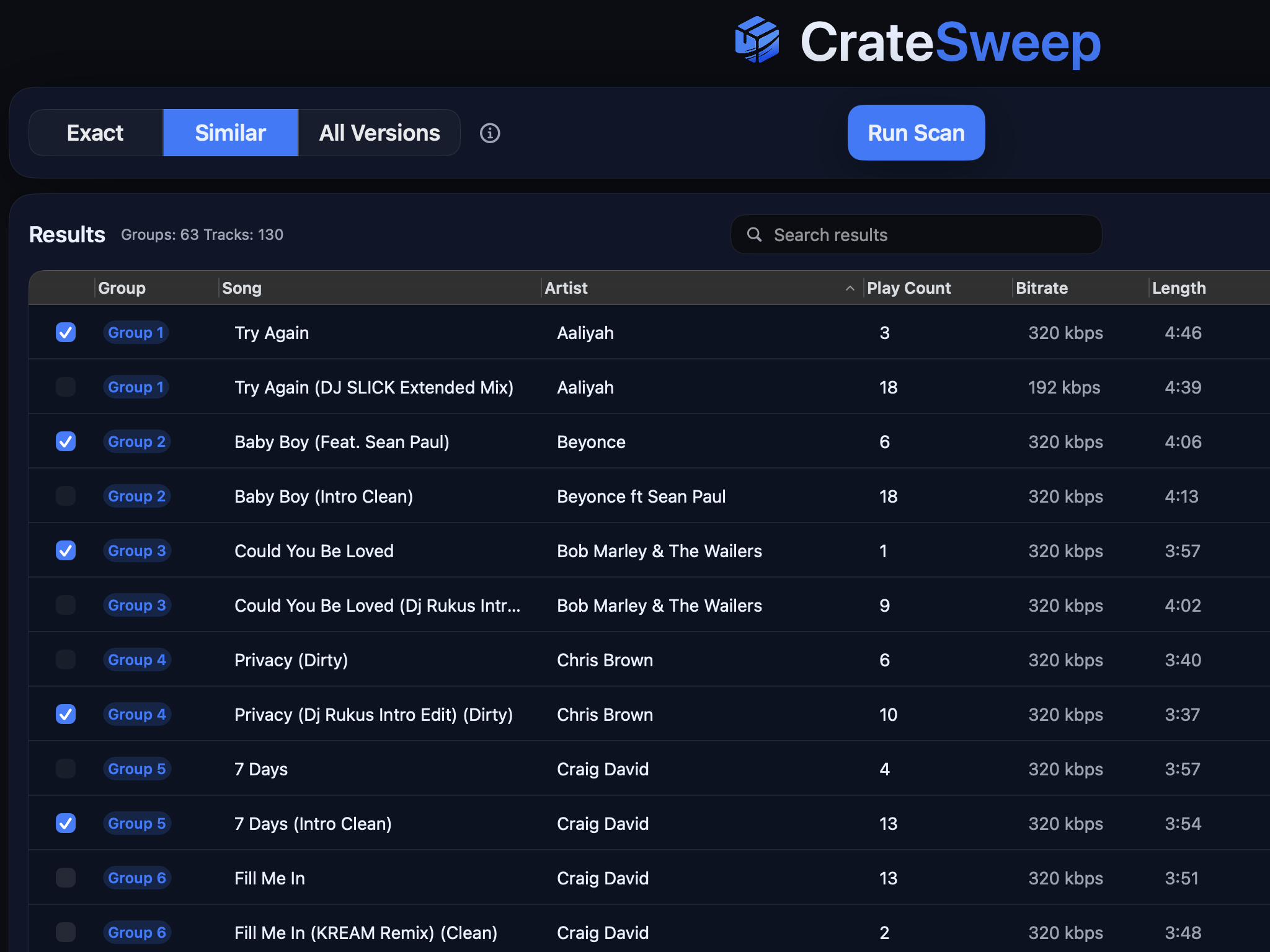
Related guides
Crate Hackers Review 2026: Is It Worth $30/Month?
What Crate Hackers actually does, who the curated crates help, where it falls short, and why crate-building works better on a clean Serato library.
dupeGuru vs CrateSweep for Serato Duplicates (2026)
dupeGuru is free but doesn't know Serato exists. What each tool catches, what deleting files does to your crates, and which is safer for DJs.
Lexicon vs CrateSweep for Cleaning a Serato Library
Lexicon and CrateSweep both find duplicate tracks, but they're built for different jobs. Pricing, workflow, and which to use for Serato cleanup.