Fix Serato's Orange Missing Files in Minutes (2026)
Why Serato tracks turn orange and how to fix missing files fast — relocate lost files, reconnect moved drives, and stop cleanup from creating new ones.
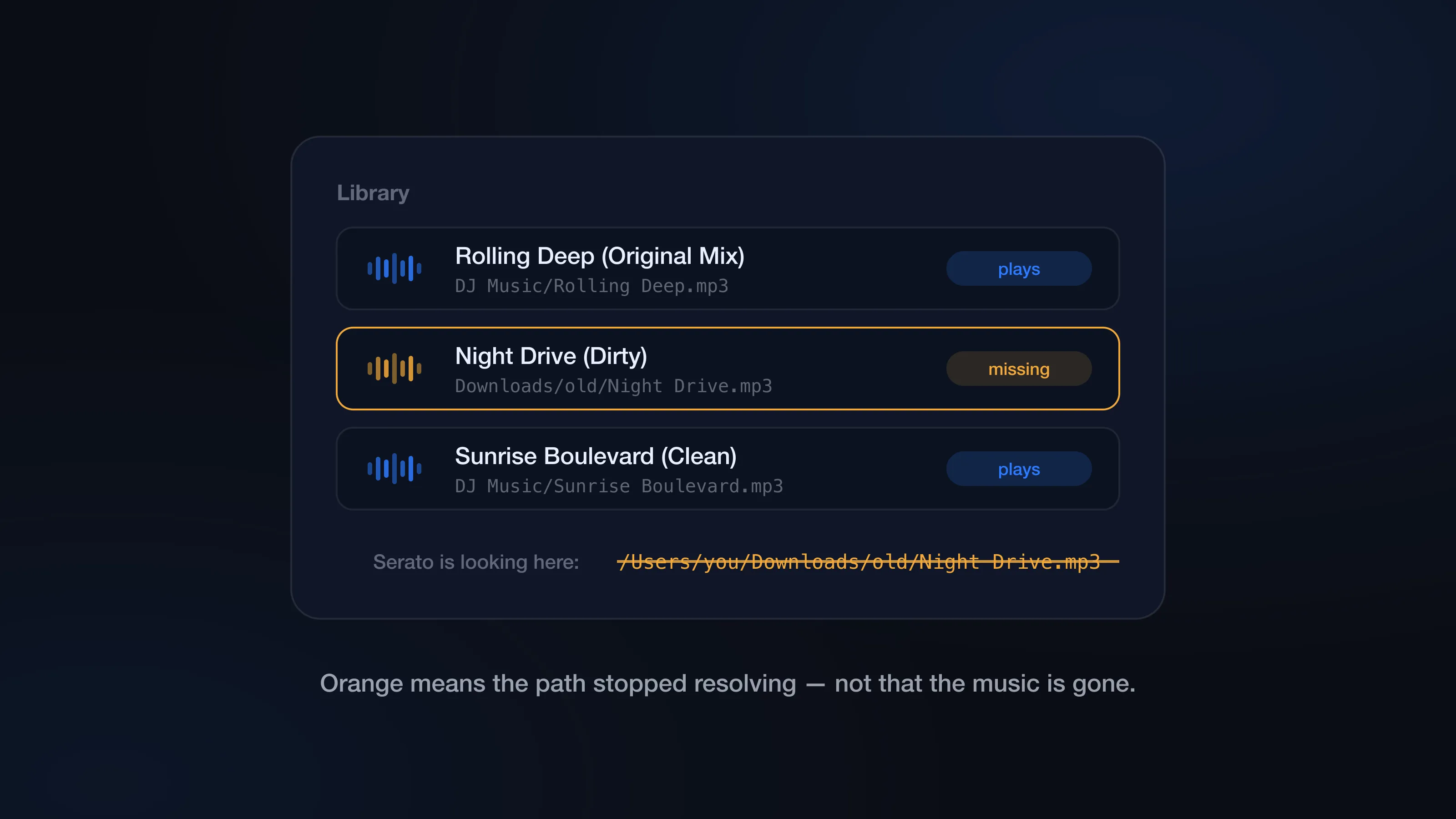
Orange tracks in Serato mean one thing: the library entry still exists, but the audio file isn’t where Serato expects it to be. The crate entry, cue points, and metadata are all still there — Serato just can’t play a file it can’t find.
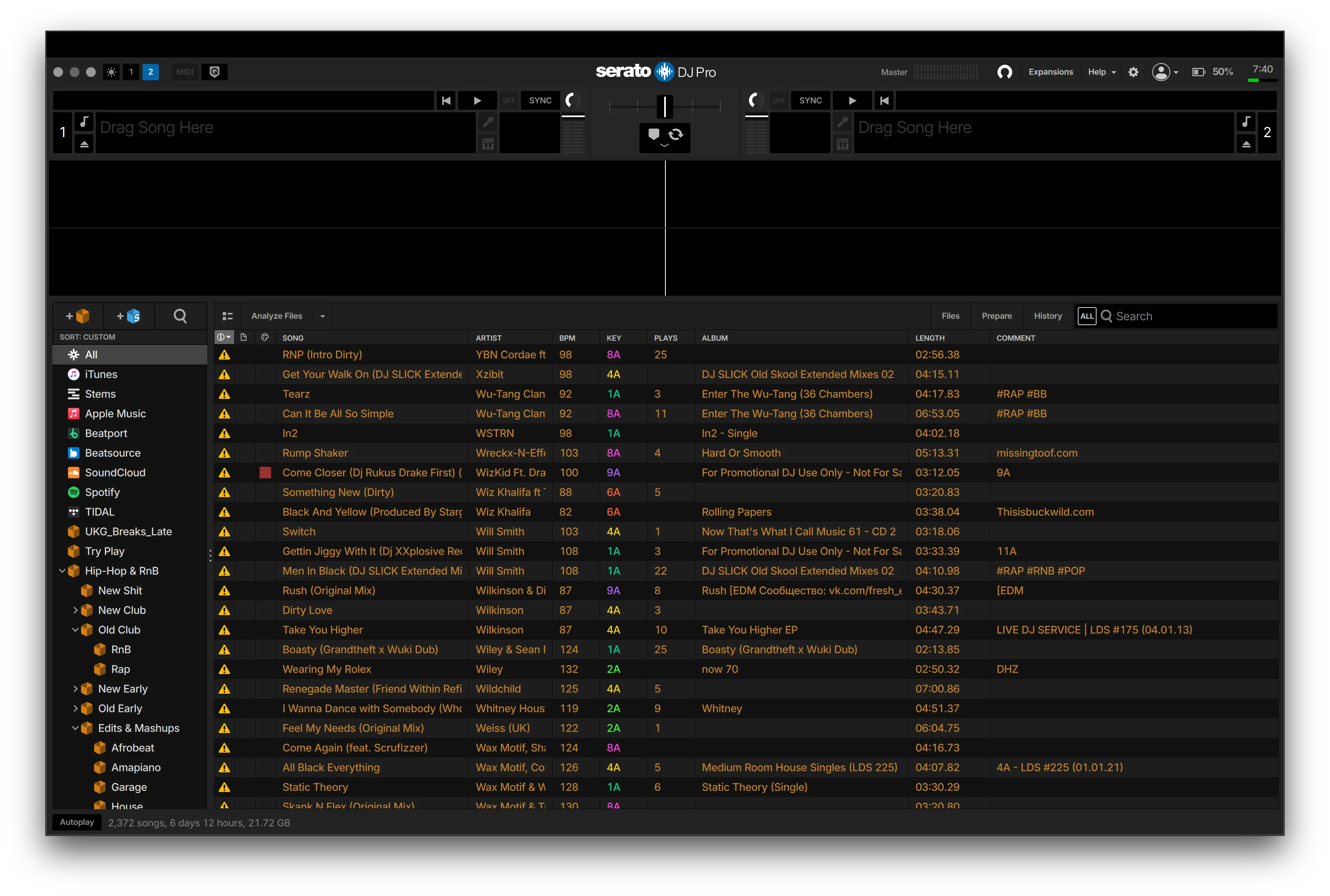
The good news is that this is usually fixable in minutes, because in most cases the file didn’t go anywhere. It got moved, renamed, or left on a drive that isn’t plugged in. The _Serato_ folder stores a path for every track, and when that path stops resolving, the track goes orange. Fix the path, fix the track.
This guide covers the common causes, Serato’s Relocate Lost Files workflow, and — because it’s how most orange files get created in the first place — how to clean duplicates without making more of them.
What does a missing orange file mean in Serato?
A missing file is a database entry pointing at a path that no longer works. Serato might still be looking for:
/Users/you/Music/DJ Music/Track.mp3
while the file now lives at:
/Users/you/Music/Record Pool/Track.mp3
— or on an external drive that isn’t connected.
Serato isn’t saying the song is gone. It’s saying the saved location stopped resolving. If the file was only moved, you can reconnect it and everything comes back, cues included. If the file was actually deleted, no amount of relocating will help — you need the file itself back, from the Trash, a backup, or a fresh download.
Why Serato files go orange
The usual suspect is Finder. You clean up Downloads, rename a folder, or move a record-pool batch into a tidier structure — after the tracks were already added to Serato. Finder is happy. Serato is still pointing at the old path.
External drives are the other big one. If your music lives on a USB stick or external SSD, that drive needs to be mounted with the same name it had when you added the tracks. Rename the drive, forget to plug it in, or clone it to a differently named drive, and Serato looks in the wrong place.
Then there’s the painful one: the file really was deleted. This happens during manual duplicate cleanup more than anywhere else. You spot two copies of a track, remove one entry from Serato, then delete the wrong file in Finder — and the copy you kept goes orange.
Cloud folders cause a quieter version of the same problem. Dropbox, Google Drive, and iCloud can show you a filename while the actual audio is offloaded to the cloud, not on disk.
If the same tracks keep going orange (or coming back twice) after every cleanup, the underlying import habits are the real problem — why duplicate tracks keep reappearing in Serato covers those.
How to fix Serato missing files with Relocate Lost Files
Before anything else, check the obvious: is the drive with the music connected, mounted, and named what it was named when you added the tracks? That alone fixes a surprising share of orange libraries.
Then use Serato’s built-in relocation:
- Open the Files panel in Serato.
- Find Relocate Lost Files.
- Drag the folder or drive you want Serato to search onto it.
- Let Serato scan and reconnect the missing entries.
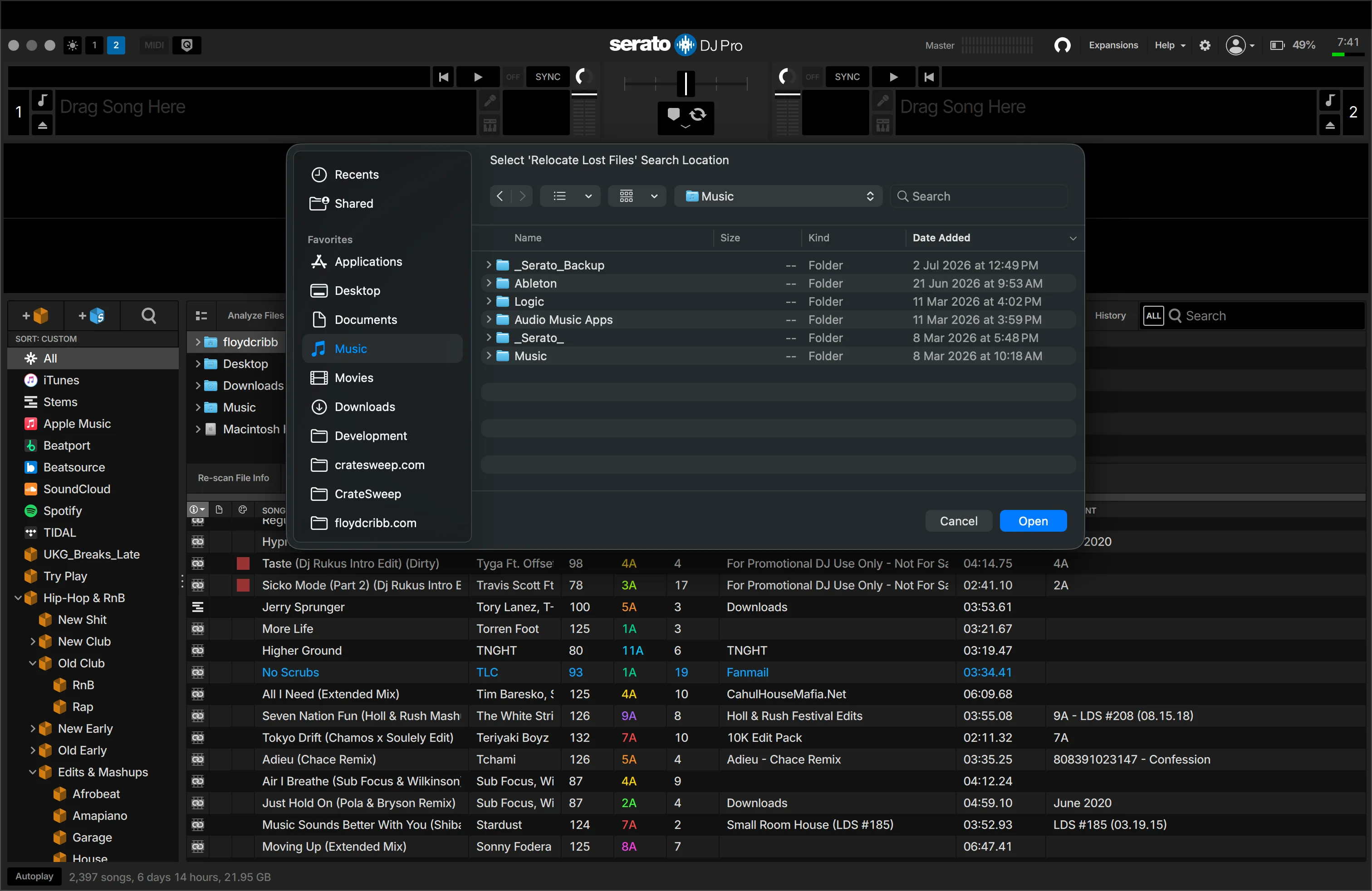
Drag the smallest folder that could contain the files. If the missing tracks are somewhere in your main DJ music folder, drag that — not your entire Mac. The scan is faster and there’s less chance of Serato reconnecting to the wrong copy.
When it finishes, spot-check. Search for a few tracks that were orange, load them, and confirm Serato found the version you expected — right bitrate, right edit, cues where you left them.
One thing relocation won’t do: clean anything up. It reconnects moved files. It doesn’t decide which duplicate is the keeper, remove dead entries, or resurrect files that are actually gone.
Keep external drive names consistent
If you play from external drives, the drive’s name is part of your library. Serato’s saved paths run through /Volumes/<drive name>/, so renaming the drive breaks every path on it.
Don’t rename a drive after building crates from it. If you clone a drive, give the clone the same name and test it before a gig. And when tracks go orange right after plugging in, check the boring stuff first: drive mounted, folder structure intact, nothing moved into a new parent folder.
Restore deleted files from Trash or backup
If relocation can’t find a file, stop and ask whether it still exists anywhere. Check the Trash first — especially if the orange appeared right after a cleanup session. If it’s there, put it back, then relocate if Serato still points at the old path.
Not in the Trash? Check backups, old USB drives, record-pool download history, cloud versions. The audio has to be back on disk before Serato can reconnect to it.
And if you genuinely don’t want the track anymore, remove the dead entry rather than leaving orange clutter in your crates. Just be sure before you do — a removed entry takes its cues and play history with it.
Don’t create the next batch of orange files
Here’s the part worth internalizing: fixing orange files is a chore, but making them is usually one specific mistake — manual duplicate cleanup where the Serato entry and the Finder delete get out of sync.
In Serato, removing a duplicate entry and deleting its file are two separate actions in two separate apps. Do a few dozen of those pairs by hand on a Friday night and eventually you’ll delete the file that belonged to the entry you kept. Now you have a missing file and you still have a duplicate.
This is the exact failure CrateSweep was built to remove. It reads your Serato library directly, groups the duplicates, and when you confirm a deletion it removes the library entry and moves that entry’s file to the Trash — as one operation. It can’t delete the file for a track you kept, because the entry and the file never get separated. Before any deletion run it takes a timestamped backup of your Serato database, and Undo Last Deletion rolls everything back if you change your mind.
To be clear about what it doesn’t do: CrateSweep won’t repair the orange files you already have. Serato’s relocation workflow is the fix for those. CrateSweep’s job is making sure your next cleanup doesn’t create new ones.
So the order that works: relocate your orange files first, back up, then do the duplicate pass — the full removal guide is here. Once every entry points at a real file, every cleanup decision gets easier to trust.
CrateSweep for Serato
Sweep your library in minutes
Find duplicate tracks, review every match, and keep your Serato crates clean before your next set.
Download Free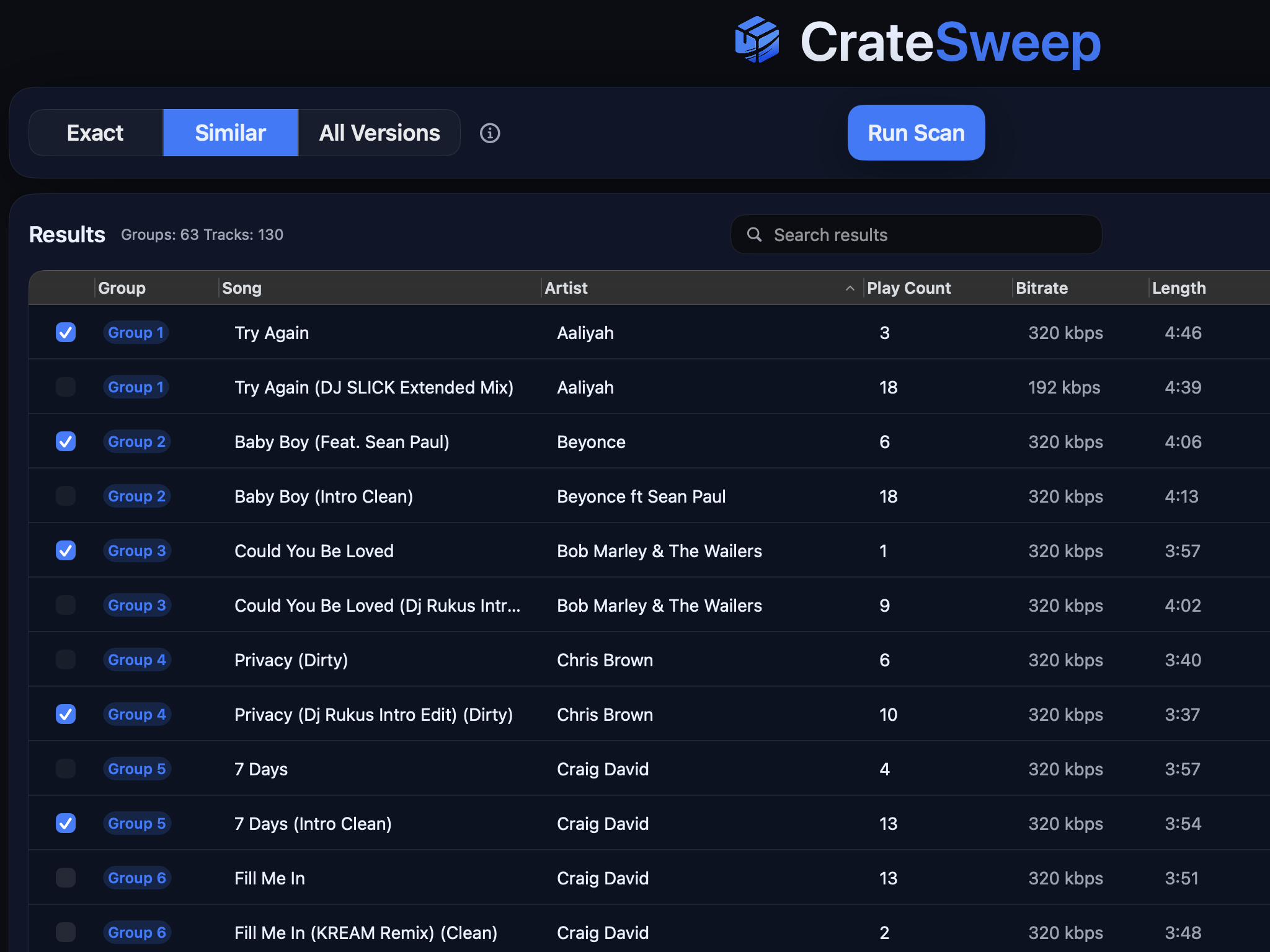
Related guides
Crate Hackers Review 2026: Is It Worth $30/Month?
What Crate Hackers actually does, who the curated crates help, where it falls short, and why crate-building works better on a clean Serato library.
dupeGuru vs CrateSweep for Serato Duplicates (2026)
dupeGuru is free but doesn't know Serato exists. What each tool catches, what deleting files does to your crates, and which is safer for DJs.
Lexicon vs CrateSweep for Cleaning a Serato Library
Lexicon and CrateSweep both find duplicate tracks, but they're built for different jobs. Pricing, workflow, and which to use for Serato cleanup.