Serato Duplicates Keep Coming Back? Here's Why (2026)
Duplicate tracks reappearing in Serato after cleanup? The causes — double imports, iTunes display, moved files — and the workflow fixes that stop them.
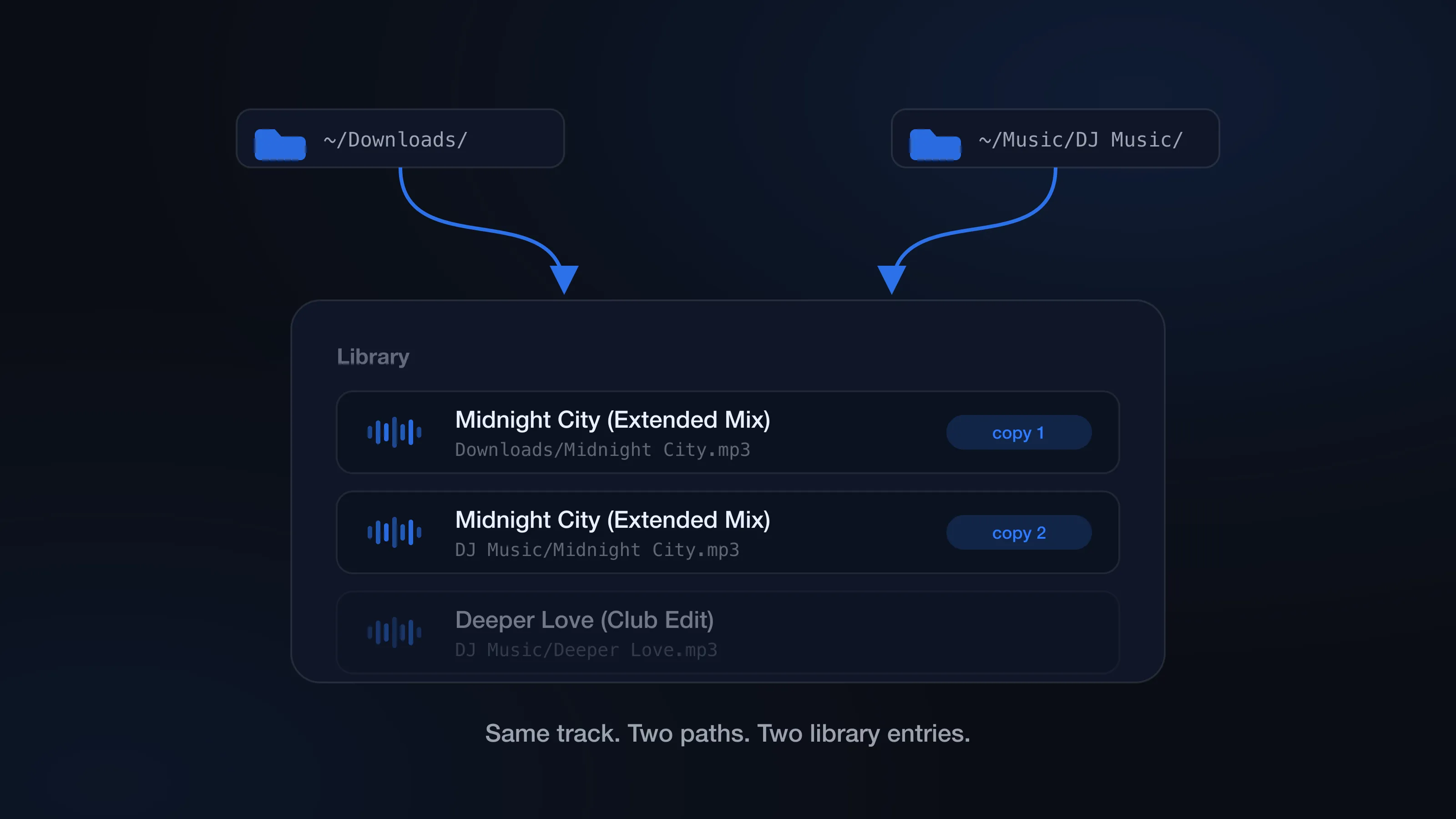
You clean up your library, open Serato a week later, and the same records are back twice. It looks like Serato ignored your cleanup. It didn’t — Serato is doing exactly what it was told: showing every library entry, for every file path it knows about.
That path detail is the whole story. Serato never looks at two files and decides “same track, hide one.” If a song exists in two places, or reaches your library through two sources, it shows up twice. So before you reach for a duplicate finder, it’s worth fixing the workflow that keeps creating the duplicates — otherwise you’ll clean the library today and rebuild the same mess by next month. (The broader Serato library cleanup workflow puts prevention in order alongside backup, missing-file repair, and removal.)
Why does Serato show duplicate tracks from different folders?
The most common cause is the simplest: the same track lives in more than one folder.
You downloaded a promo into Downloads, copied it into a record-pool folder, then dragged it into Music later. Or you imported an old USB stick without remembering those files were already on the laptop. To Serato, a copy at:
/Users/you/Downloads/Track.mp3
is a completely different track from:
/Users/you/Music/DJ Music/Track.mp3
— identical audio, two paths, two entries.
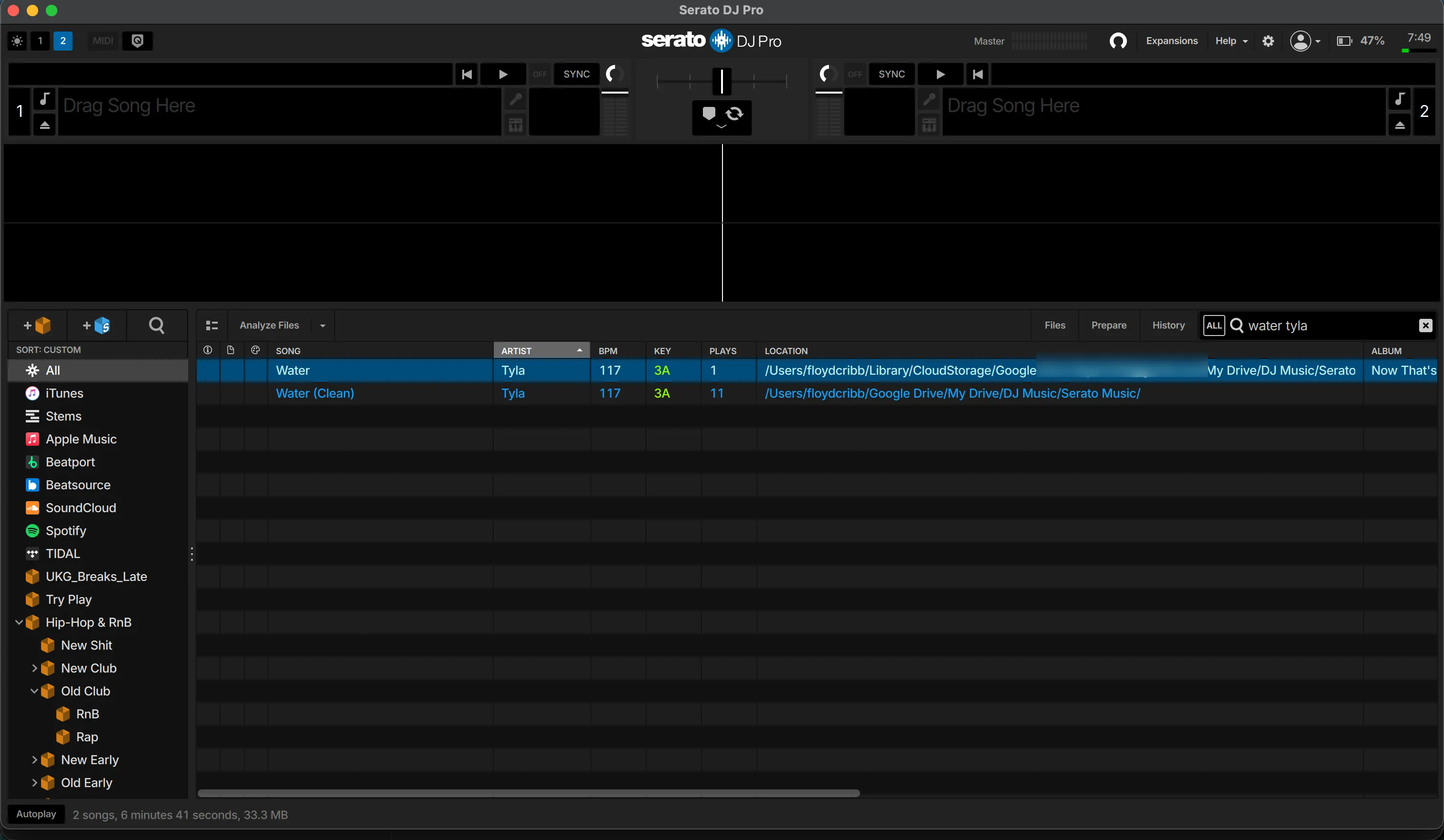
The fix isn’t glamorous, but it works: pick one canonical music folder and make it the only place a local file can live before it touches Serato.
Is the iTunes or Apple Music library making duplicates in Serato?
The other classic: Show iTunes Library is enabled in Serato’s settings, so tracks from Apple Music/iTunes appear alongside the same tracks you’ve already added to Serato crates. Every overlap becomes noise in search.
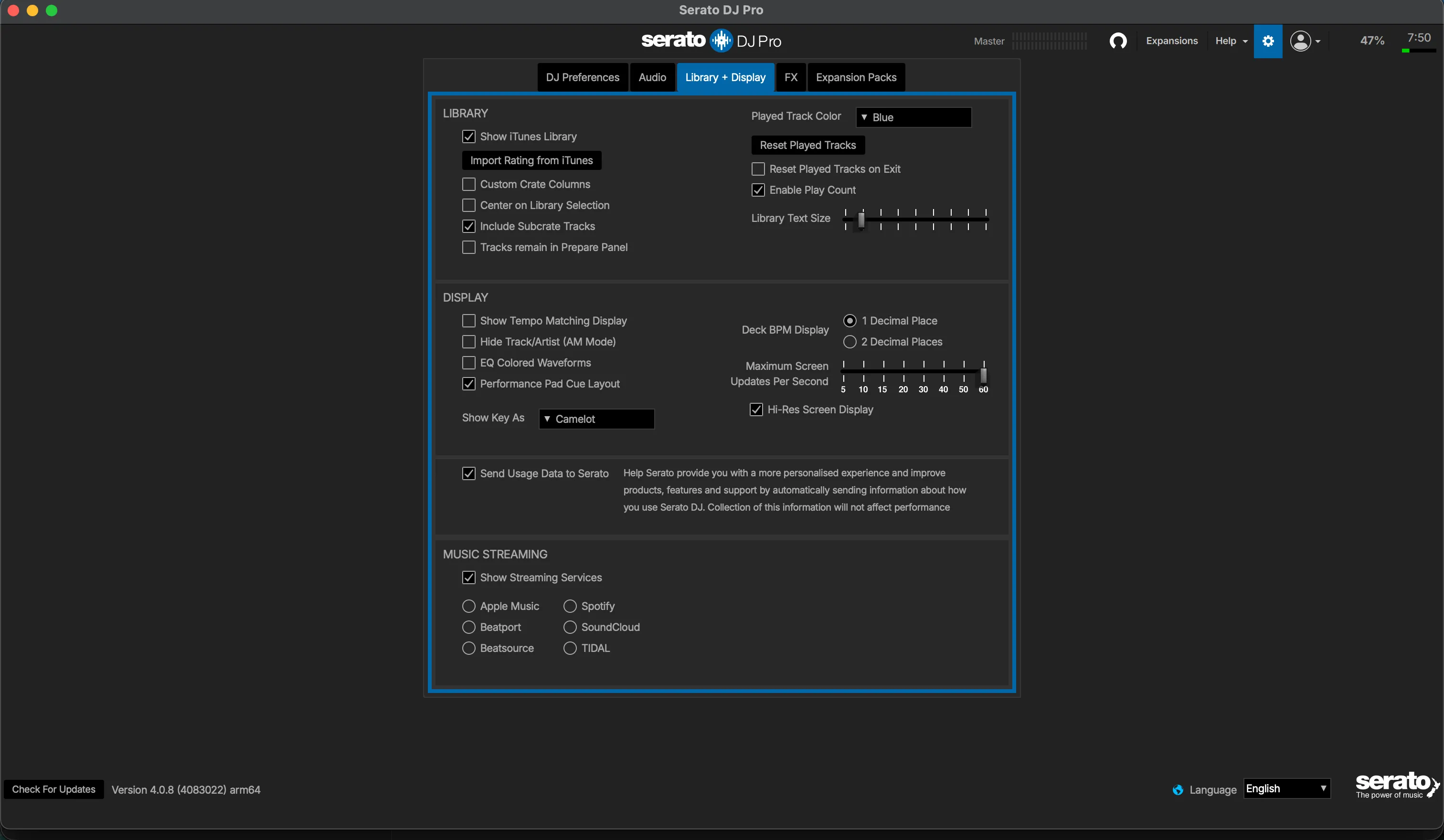
If you don’t use that integration anymore, turn it off — done. If you still rely on it, be deliberate about it: manage those tracks in Apple Music or in Serato, not the same working library maintained in both places.
Why duplicates appear after moving or renaming files in Finder
Serato’s database points at paths, and Finder doesn’t tell Serato anything.
The sequence goes: a track is already in Serato, you move it from Downloads to a cleaner folder, then you drag that folder into Serato. Now the old path is still in the database and the new path just became a second entry. The old one probably shows as a missing file; the new one plays fine. From the booth, it’s two search results and one of them is broken.
This is also how a duplicate cleanup turns into a missing-file problem — delete the file behind the entry you meant to keep and it goes orange. Already there? Read how to fix missing orange files in Serato.
The prevention rule: once Serato knows about a file, don’t move or rename it in Finder. Organize first, import second.
Why laptop and USB sync creates duplicate Serato entries
Your main library is on the laptop. You copy a gig crate to a USB drive. After the gig, you copy the USB folders back “just in case.” Later you import both the local folder and the drive folder. Same records, two paths — and they’ll keep multiplying every time the copy loop runs.
Use external drives with a direction. The drive is either a backup/export you play from, or a source you copy to — pick one. Treating both the laptop and the drive as editable masters is how duplicates keep coming back no matter how many times you clean.
Streaming and local copies can look like duplicates too
Not every repeated search result is junk. If you use streaming in Serato, you’ll see streaming results next to local files for the same track. And a working library legitimately needs versions: clean, dirty, intro edit, instrumental.
The junk is the copy with no job — the low-bitrate re-download, the stray still sitting in Downloads, the same extended mix stored twice under slightly different names. Before deleting anything, check what the copy actually is. Clean and dirty both belong if you play both. Two identical files in different folders almost never do.
How to stop Serato duplicates from coming back
Four habits cover nearly all of it:
One canonical music folder. Every local file lands there before import. Download, move it in, rename or tag if that’s your process, then import once. No dragging strays from Downloads into crates “to sort out later.”
Kill the iTunes/Apple Music display if you don’t use it. And if you do use it, keep clear in your head which playlists come from Apple and which crates are native Serato.
Hands off Finder after import. Moving files Serato already knows about is the fastest way to mint an orange entry and a duplicate at the same time.
No two-way folder syncing. Laptop to drive is fine. Drive to laptop is fine. Laptop to drive to laptop to another drive is where paths start breeding.
Existing duplicates won’t disappear on their own
Fixing your workflow stops new duplicates. The ones already in your library are staying until you remove them.
You can do it manually inside Serato — sort by song name, compare bitrate and length, remove the unwanted entry, then separately delete the file in Finder for the disk space. The full manual process is here. It works; it’s just slow, and a name sort misses renamed copies.
The faster pass is CrateSweep: it reads the Serato library directly, groups every duplicate with the play counts and bitrates you’d be comparing anyway, and Smart Select pre-picks the loser in each group — every pick overridable before anything is deleted. Scanning and reviewing are free; deleting is a one-time $19 unlock.
Either way, fix the habits first. Otherwise any cleanup — manual or automatic — is just mopping the same floor with the tap still running.
CrateSweep for Serato
Sweep your library in minutes
Find duplicate tracks, review every match, and keep your Serato crates clean before your next set.
Download Free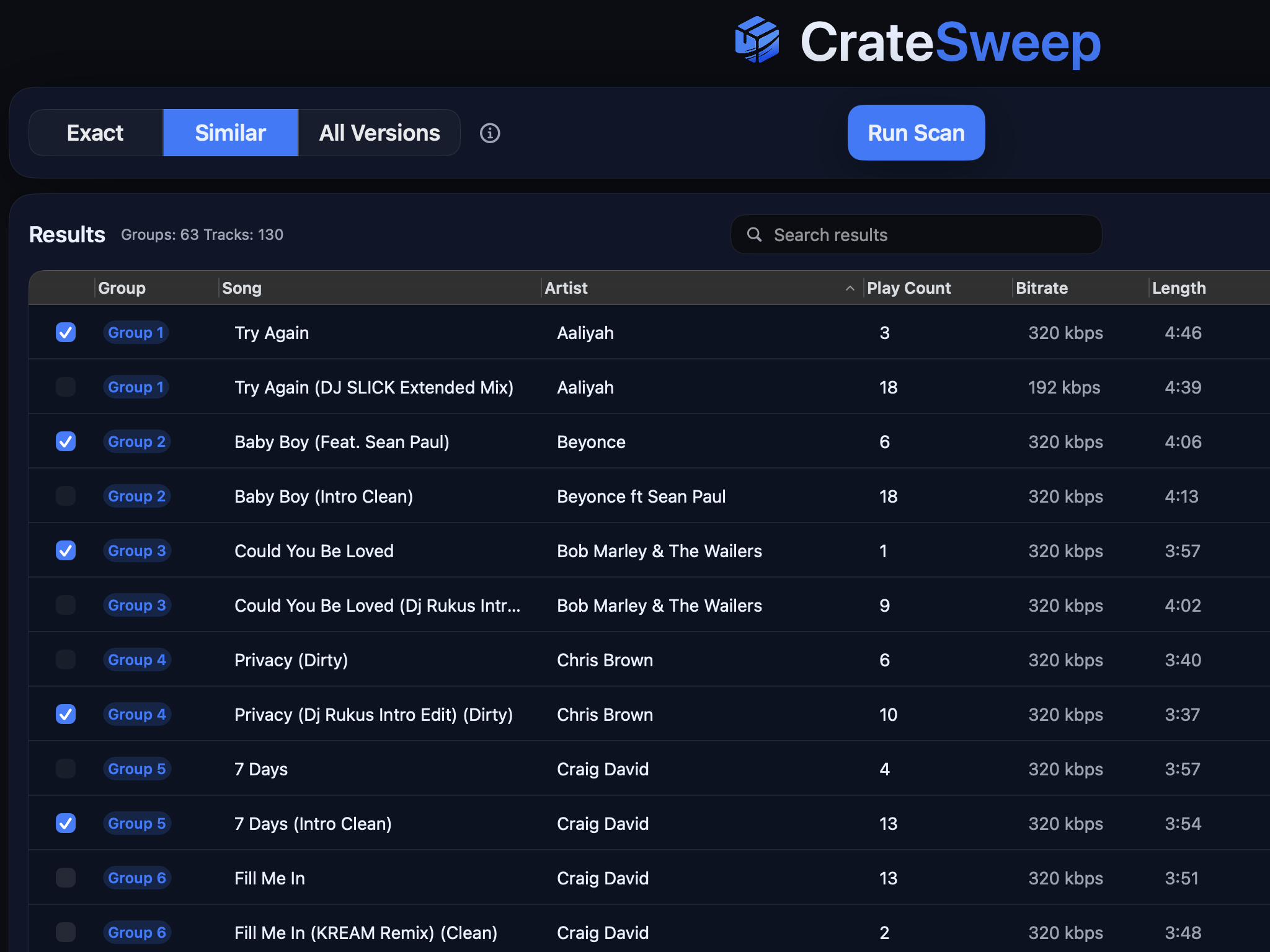
Related guides
Crate Hackers Review 2026: Is It Worth $30/Month?
What Crate Hackers actually does, who the curated crates help, where it falls short, and why crate-building works better on a clean Serato library.
dupeGuru vs CrateSweep for Serato Duplicates (2026)
dupeGuru is free but doesn't know Serato exists. What each tool catches, what deleting files does to your crates, and which is safer for DJs.
Lexicon vs CrateSweep for Cleaning a Serato Library
Lexicon and CrateSweep both find duplicate tracks, but they're built for different jobs. Pricing, workflow, and which to use for Serato cleanup.